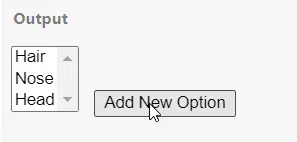
HOWTO · JavaScript
How to Add Options to Select With JavaScript
The manual possibility of adding option to select element can be altered with JavaScript. The Dom manipulation to create and append new options, initializing Option constructor to add options and the generic methods of joining new options will be discussed here.
Generally, options of a select element can be manually arranged.
But having many options and the lack of dynamically handling of the categories can make issues in the manual case. In this regard, the JavaScript methods of creating new options and modifying them on demand are much more acceptable.
We will demonstrate three ways of adding new options to the select element. Firstly, we will create an option element manipulating the DOM and adding text and value to storing the object.
Later, we will append the object to the select-id. Another way is to initiate an option constructor and add the necessary text and value.
We will display the work by appending it to the select element object. And lastly, create a jQuery Dom element and append it to select.
Create option Tag and Append to Select in JavaScript
We will declare an instance (x) for the select and create an object option to the element option. Next, we will assign text and value to the object.
Let’s see the code lines for better understanding.
Code Snippet:
<!DOCTYPE html>
<html>
<body>
<select id="mySelect" size="3">
<option value="hair">Hair</option>
<option value="nose">Nose</option>
</select>
<button type="button" onclick="myF()">Add New Option</button>
<script>
function myF() {
var x = document.getElementById("mySelect");
var option = document.createElement("option");
option.value = "hand";
console.log(option.value);
option.text = "Hand";
x.add(option);
}
</script>
</body>
</html>
Output:
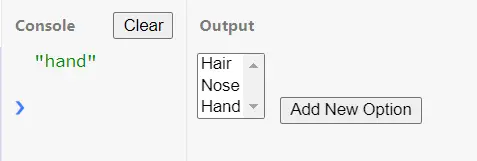
So, the last command of the scripted tag has x.add(option), which implies joining the new option to the select. Here, you can use append and appendChild instead of add, which will work just fine.
Use Option Constructor to Add New Options in JavaScript
The following example only requires a constructor Option to create a new slot for a new option.
The Option constructor takes only two parameters. Firstly, it takes the text value then the value attribute’s input.
Code Snippet:
<!DOCTYPE html>
<html>
<body>
<select id="mySelect" size="3">
<option value="hair">Hair</option>
<option value="nose">Nose</option>
</select>
<button type="button" onclick="myF()">Add New Option</button>
<script>
function myF() {
var x = document.getElementById("mySelect");
var option = new Option("Hand", "hand");
console.log(option.value);
x.appendChild(option);
}
</script>
</body>
</html>
Output:
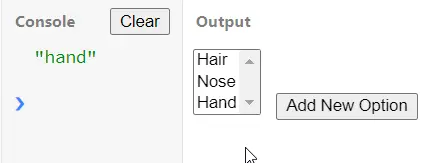
Use jQuery DOM Element to Add New Options in JavaScript
The jQuery DOM element fires up the option tag, and later the .val and .text are used to define the text and value. Then we append it to the select-id.
Code Snippet:
<!DOCTYPE html>
<html>
<body>
<select id="mySelect" size="3">
<option value="hair">Hair</option>
<option value="nose">Nose</option>
</select>
<button type="button" onclick="myF()">Add New Option</button>
<script src="https://code.jquery.com/jquery-3.1.0.js"></script>
<script>
function myF() {
$('#mySelect').append($('<option>').val('head').text('Head'));
}
</script>
</body>
</html>
Output: