HOWTO · JavaScript
How to Convert Base64 to Image in JavaScript
The easiest way to convert a Base64 string to an image is to invoke a function that initiates an image constructor and places the base64 string as the source of the image. This solution requires minimal code lines and effort to get the preferable outcome. Also, there is way complex implementation as converting the base64 string through the server-side decoders and many more.
On this page
A basic drive to convert a base64 string to an image might not agitate you like it would have been in the case of a reverse task. Most likely, you will not require to deal with the server-side for conversion.
This can be solved with interaction with servers, but here we will not go on the tough path. In the following segment, we will consider a base64 string that already has validation on the internet.
Putting the string in the src property can easily derive the corresponding image. Let’s jump to the code fences for the implementation.
Use the Image() Constructor and the src Property to Convert Base64 to Image in JavaScript
Here, we will add the base64 string to the function getBase64Img(). Passing that function to a new variable, we will use it in another function that will perform the conversion task.
We will initiate an image constructor, and the src property for that corresponding object will translate the base64 string.
Code Snippet:
<h3> Base64 to Image </h3>
<div id="main"></div>
<textarea id="log"></textarea>
function getBase64Img() {
  return 'data:image/png;base64,iVBORw0KGgoAAAANSUhEUgAAAFAAAABQBAMAAAB8P++eAAAAMFBMVEX////7+/vr6+vNzc2qqqplywBWrQD/Y5T/JTf+AADmAABeeEQvNydqAAAGBAMAAAGoF14oAAAEBUlEQVR42u2WTUwUVxzA/2925LIojsyqCLtMqSQeFJeFROPHstjdNkZdkaiX9mRTovYgSYNFE43Rg5IeNG5SqyaVcGzXkvTm7hZWq9bKriAYYzSLBI3WAplp0jY2kV3fzPuYGcBxD/bmO0zevPeb//f7v0FQ5EDvwf8LFG89ixYDol9Wo+smKal2sHF6kM6q7qbE5tY03d7SHR6ygiuvwY1txkzIlPaD3NQ4Zryk/PCP1wKibBlI97dq+idXUxqgcEkVnruS/smRpuWaCbrHU5pc/wyTQsata0U77wVBTlRP9UNkT9oE61K9AHL9VERbeTVurMjNm54mqrFw8CwKmWBfpf6V2Dx/TdxN3YjMf2JwIEZ8JnjnEbEjvLAQZ1EKlxkciJ9UcdD1Z5ztDmgsgPIrMkWtMgfd41xOYXZOIjUcLB3tdchypHWIgb5k2gH0nE0zMHjRCRTLWxgY/VQrDuybcAQ/DDEwmwEn8COlSDBcTUE0GXcEjRzqoDDhDH7sfccg2szAt9hogjBFQFRmDyd9N1VTEFegXXKEVKQFJHEUd0DSKhLthIm0HSQpnNdCNizgq147GP0m7QTygNMye6NqM9ekwlG4kLI5I4cMZ+bVhMA8MwX1rw9oIjakAYX6jXlBRRJ4BF6PwmRSfQyLFhJwWy/IG8khKuirljODG0DfGAd3qCBNEol5vCqFAxqYLeUyB0H2A2Q0DspRD3BQfJEc5KBl6KprG6pNEPqqfkKzOQBsha2bQeVw6g3nSySaGYgb99ylhsLDLVYQ3E+oozOGHKzVbCBs+HkuUm6ivd4E0ZYeNTPTTrn51+0wA9TJgpZVLeaV1y+4yS8c64W0/AcFTBCHK/fFEMwFAmo4KRldE0ZxsF8cGbTuzYqHtOz8t6e8TMk5CcjNSC+kdcfgPyag9AoDhUQARmvAcIiAW3v0JzWJg64BJXdBQ21+/b4zwMqRW5dA2h3I7+onYJd+Y4i3FbyMxz4hxE7hS2MBdSq6Fgq6Bny/dxv6Sk76COj6Yz91ZG8dToQ7oYNCqu4QjX9FK5UoPt/PXO701mruhwcxGP2ecahzzxBtUtlzLHclsXtBA6wc+a2brlUc8TCvg5cPM7LiaOPT8Y4ub3bpAbqy+MQ18xRmvIe5nr83YXDt8Nca0/GveWniSHByybEVwx1dD1ccYB/6yF8DTaGcYLFA391o6DjjohaWfKXQ/xCWazmhPDhNbYf2WH4fse9zhRUkLwrXlUD+9iVD5HR77KWheclxkqsZ1bM+pqcWZ2xVe0zXjPb6pyO8IK1l5trcA7mLKuo48+VpQG0BuPmZeTbs9Vi+9oQyqv6Ieyou4FybU+HqRS4o+TH1VG7MvgFFjvfguwFfA4FobmCxcnTPAAAAAElFTkSuQmCC';
}
var base64img = getBase64Img();
function Base64ToImage(base64img, callback) {
  var img = new Image();
  img.onload = function() {
    callback(img);
  };
  img.src = base64img;
}
Base64ToImage(base64img, function(img) {
  document.getElementById('main').appendChild(img);
  var log = 'w=' + img.width + ' h=' + img.height;
  document.getElementById('log').value = log;
});
Output:
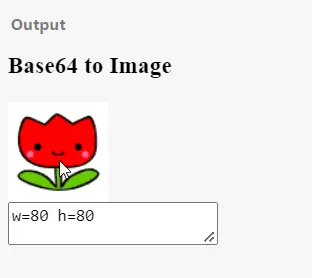
After converting the base64 string, the image will be previewed in the web browser along with the dimensions as we have added the HTML DOM properties to manage to get the values. This is the minimalistic drive to get the job done.