How to Change the Tkinter Button Size
-
Specify
heightandwidthOptions to SetButtonSize -
Set
widthandheightin Pixels of TkinterButton -
Change Tkinter
ButtonSize After Initialization
height and width options of Tkinter Button widget specify the size of the created button during the initialization. After initialization, we could still use the configure method to configure the height and width option to change the size of the Tkinter Button widget programmatically.
Specify height and width Options to Set Button Size
tk.Button(self, text="", height=20, width=20)
The height and width are set to be 20 in the unit of text units. The horizontal text unit is equal to the width of the character 0, and the vertical text unit is equal to the height of 0, both in the default system font.
Complete Working Codes
import tkinter as tk
import tkinter.font as tkFont

app = tk.Tk()
app.geometry("400x200")


buttonExample1 = tk.Button(app, text="Button 1", width=10, height=10)
buttonExample2 = tk.Button(app, text="Button 2", width=10, height=10)

buttonExample1.pack(side=tk.LEFT)
buttonExample2.pack(side=tk.RIGHT)

app.mainloop()
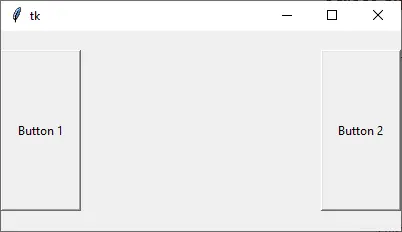
As you could see, the height and width of the button are not the same in the pixels although its width and height are set to be both 10.
Set width and height in Pixels of Tkinter Button
If we need to specify the width and/or height of Tkinter Button widget in the unit of pixels, we could add a virtual invisible 1x1 pixel image to the Button. Then the width and height will be measured in the unit of pixel.
tk.Button(app, text="Button 1", image=pixelVirtual, width=100, height=100, compound="c")
We also need to set the compound option to be c or equally tk.CENTER if the invisible image and text should be centered in the button. If compound is not configured, the text will not show in the button.
import tkinter as tk
import tkinter.font as tkFont

app = tk.Tk()
app.geometry("300x100")
fontStyle = tkFont.Font(family="Lucida Grande", size=20)

labelExample = tk.Label(app, text="20", font=fontStyle)

pixelVirtual = tk.PhotoImage(width=1, height=1)

buttonExample1 = tk.Button(
    app, text="Increase", image=pixelVirtual, width=100, height=100, compound="c"
)
buttonExample2 = tk.Button(
    app, text="Decrease", image=pixelVirtual, width=100, height=100, compound="c"
)

buttonExample1.pack(side=tk.LEFT)
buttonExample2.pack(side=tk.RIGHT)
app.mainloop()
Change Tkinter Button Size After Initialization

After the Button widget has been created, the configure method could set the width and/or height options to change the Button size.
buttonExample1.configure(height=100, width=100)
It sets the height and width of buttonExample1 to be 100.
Complete Working Examples to Change Button Size After Initialization
import tkinter as tk
import tkinter.font as tkFont

app = tk.Tk()
app.geometry("600x500")


def decreaseSize():
    buttonExample1.configure(height=100, width=100)


def increaseSize():
    buttonExample2.configure(height=400, width=400)


pixelVirtual = tk.PhotoImage(width=1, height=1)

buttonExample1 = tk.Button(
    app,
    text="Decrease Size",
    image=pixelVirtual,
    width=200,
    height=200,
    compound="c",
    command=decreaseSize,
)
buttonExample2 = tk.Button(
    app,
    text="Increase Size",
    image=pixelVirtual,
    width=200,
    height=200,
    compound=tk.CENTER,
    command=increaseSize,
)

buttonExample1.pack(side=tk.LEFT)
buttonExample2.pack(side=tk.RIGHT)
app.mainloop()

Founder of DelftStack.com. Jinku has worked in the robotics and automotive industries for over 8 years. He sharpened his coding skills when he needed to do the automatic testing, data collection from remote servers and report creation from the endurance test. He is from an electrical/electronics engineering background but has expanded his interest to embedded electronics, embedded programming and front-/back-end programming.
LinkedIn Facebook