HOWTO · Seaborn
How to Create Seaborn Line Plots
This tutorial demonstrates how to create line plots in Python using the Seaborn module. Learn to visualize data effectively with customizable line plots, confidence intervals, and multiple lines for comparative analysis. Perfect for both beginners and experienced users looking to enhance their data visualization skills.
On this page
A Seaborn line plot maps values from an x variable and a y variable to points joined by a line. It is often used for time series, but x can be any ordered or continuous variable. The seaborn.lineplot() function can also summarize repeated observations and draw separate lines for categories, making it useful for exploring how measurements change and comparing groups.
Getting Started with Seaborn
Seaborn is a statistical plotting library built on Matplotlib. The examples below use a pandas DataFrame, a convenient way to keep named columns together. Install Seaborn and its dependencies in your Python environment if they are not already available; then import Seaborn and Matplotlib. No separate installation command is needed in the plotting examples.
The examples in this tutorial were run and verified with Seaborn 0.13.2, Matplotlib 3.11.2, and pandas 3.1.0 on Python 3.12, and every figure below is the output those examples actually produced.
Creating a Basic Line Plot
Pass the DataFrame to data and name the columns for x and y. The following example uses fixed values, so the plotted points are reproducible. The call to plt.show() opens the figure in an interactive environment; in a notebook, the figure is commonly displayed as the cell result.
Run this example:
import pandas as pd
import seaborn as sns
import matplotlib.pyplot as plt

data = pd.DataFrame({
    "day": [1, 2, 3, 4, 5],
    "visitors": [12, 15, 13, 18, 21],
})

sns.lineplot(data=data, x="day", y="visitors")
plt.xlabel("Day")
plt.ylabel("Visitors")
plt.title("Visitors by day")
plt.tight_layout()
plt.show()
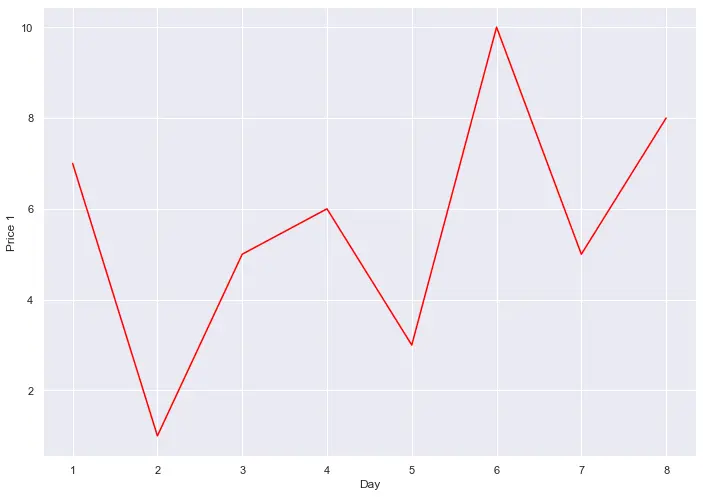
The horizontal axis uses day, and the vertical axis uses visitors. Replace these names and values with columns from your own table. If rows share an x value, Seaborn may aggregate the y observations at that position and show an uncertainty band; the next sections explain how to interpret those features.
Customizing Line Plots
Appearance settings help a reader distinguish a series or follow its values. For example, color sets a line color, marker places a symbol at each observation, and linestyle changes the stroke pattern. These are visual choices; they do not create groups or change which rows belong to the data. Pick colors and markers that remain easy to distinguish at the size where the figure will be read.
Use the same deterministic table as above in a script where the imports and data definition are included. This complete variant emphasizes points with a dashed line:
import pandas as pd
import seaborn as sns
import matplotlib.pyplot as plt

data = pd.DataFrame({
    "day": [1, 2, 3, 4, 5],
    "visitors": [12, 15, 13, 18, 21],
})

sns.lineplot(data=data, x="day", y="visitors", color="darkorange", marker="o", linestyle="--")
plt.xlabel("Day")
plt.ylabel("Visitors")
plt.title("Visitors by day")
plt.tight_layout()
plt.show()
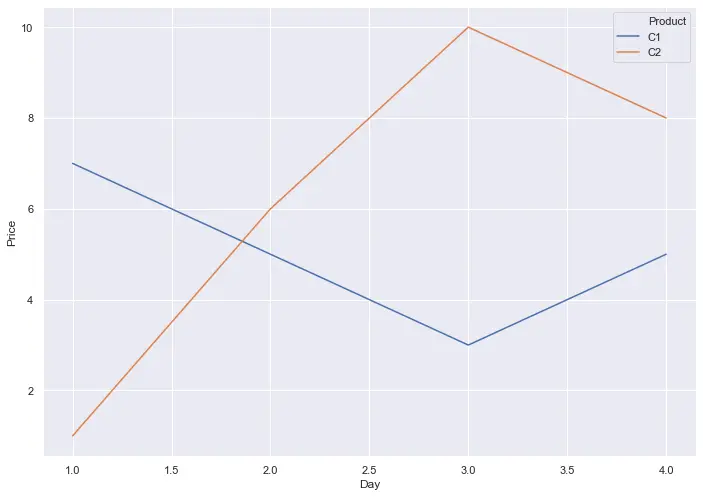
For a different appearance, change these arguments or use Matplotlib methods to set labels and titles. Keep the mapping of x and y explicit so later readers can tell what each point represents.
Adding Confidence Intervals
An uncertainty band around a line summarizes variation or uncertainty around an estimate. Its meaning depends on the data and the estimator: when several observations contribute to an x position, the center line may summarize them, and the band communicates uncertainty around that summary. It is not simply another name for standard deviation. Standard deviation describes spread among observations; a confidence interval describes uncertainty in an estimated quantity.
The following example gives each day three observations. The code first prints the mean of each group, so you can check the plotted line against plain numbers:
import pandas as pd
import seaborn as sns
import matplotlib.pyplot as plt

data = pd.DataFrame({
    "day": [1, 1, 1, 2, 2, 2, 3, 3, 3, 4, 4, 4],
    "visitors": [10, 12, 14, 14, 16, 18, 13, 15, 17, 19, 21, 23],
})

print(data.groupby("day")["visitors"].mean())

sns.lineplot(data=data, x="day", y="visitors", marker="o")
plt.xlabel("Day")
plt.ylabel("Visitors")
plt.title("Mean visitors by day with 95% confidence band")
plt.tight_layout()
plt.show()
Output:
day
1    12.0
2    16.0
3    15.0
4    21.0
Name: visitors, dtype: float64
The center line passes through the printed means (12, 16, 15, and 21): with repeated observations, lineplot() aggregates each x group with the mean by default. The shaded band is the 95% confidence interval for that mean, computed by bootstrapping. Where a group is more spread out, the band is wider; it says nothing about where individual observations fall.
Before interpreting a band, check whether each x value has repeated observations and what those observations represent. Repeated measurements from the same subject, for example, do not necessarily represent independent samples. With one observation at each x value, there is no within-position replication from which to infer variation in the same way. The appropriate interpretation also depends on the Seaborn version and plotting options in use. The examples here use the errorbar parameter, available since Seaborn 0.12; in Seaborn 0.13.2 the default is errorbar=("ci", 95), and errorbar="sd" draws a band spanning one standard deviation on either side of the mean instead. Consult the documentation for the installed version when you need to control the estimator or interval method. If the band is not meaningful for your data, configure the plot accordingly or omit it and explain how the line was computed.
When the band is not meaningful, turn it off with errorbar=None. The aggregation still happens — the line still connects the group means — but no band is drawn:
import pandas as pd
import seaborn as sns
import matplotlib.pyplot as plt

data = pd.DataFrame({
    "day": [1, 1, 1, 2, 2, 2, 3, 3, 3, 4, 4, 4],
    "visitors": [10, 12, 14, 14, 16, 18, 13, 15, 17, 19, 21, 23],
})

sns.lineplot(data=data, x="day", y="visitors", marker="o", errorbar=None)
plt.xlabel("Day")
plt.ylabel("Visitors")
plt.title("Mean visitors by day without uncertainty band")
plt.tight_layout()
plt.show()
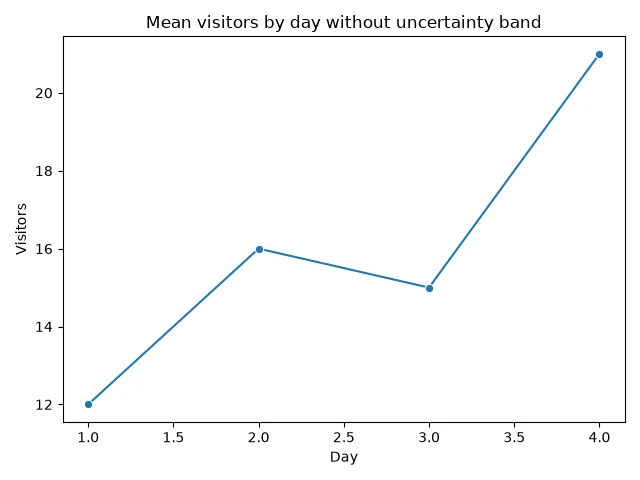
The two figures plot the same means; only the band differs. Choose between them based on whether the uncertainty summary helps the reader, not on which figure looks cleaner.
Plotting Multiple Lines
For category-based comparisons, include a category column and map it to hue. Seaborn draws a separate colored line for each category and adds a legend. Map style to the same or another categorical column when line patterns can provide an additional visual distinction. Use categories only when the rows share the same x and y measures; keep labels and units consistent across groups.
Here is a complete grouped-data example with fixed observations:
import pandas as pd
import seaborn as sns
import matplotlib.pyplot as plt

data = pd.DataFrame({
    "week": [1, 2, 3, 1, 2, 3],
    "orders": [8, 11, 14, 6, 9, 10],
    "store": ["North", "North", "North", "South", "South", "South"],
})

sns.lineplot(data=data, x="week", y="orders", hue="store", style="store", markers=True, dashes=True)
plt.xlabel("Week")
plt.ylabel("Orders")
plt.title("Orders by store")
plt.tight_layout()
plt.show()
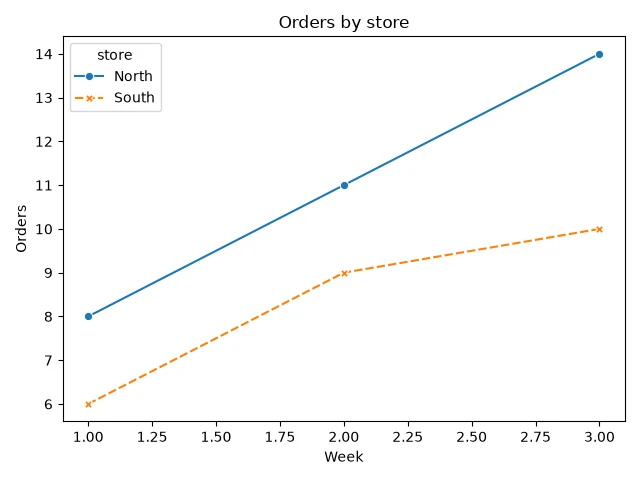
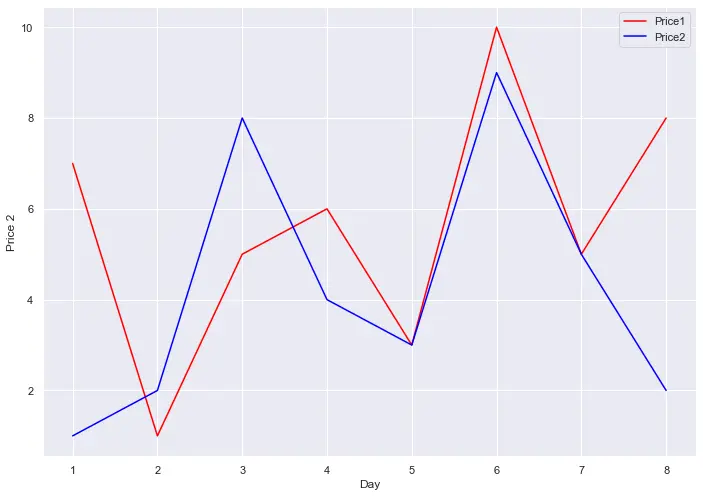
When the data instead has separate numeric columns for each series, reshape it to a long table with one value column and one series-name column, then map the series name to hue. Alternatively, plot each y column on shared Matplotlib axes and assign a label to each line before adding a legend. In either approach, the legend should identify every line and match its data. Do not use category styling to conceal different units or scales; consider separate axes or separate figures when direct comparison would mislead.
Fixing a Misspelled Column Name
The names passed to x and y must match column names in data exactly. If a name is misspelled, lineplot() raises an error before drawing anything. This call asks for a column called visitor, but the DataFrame only has visitors:
import pandas as pd
import seaborn as sns

data = pd.DataFrame({
    "day": [1, 2, 3, 4, 5],
    "visitors": [12, 15, 13, 18, 21],
})

sns.lineplot(data=data, x="day", y="visitor")
Output:
ValueError: Could not interpret value `visitor` for `y`. An entry with this name does not appear in `data`.
The message names the argument (y), the value that failed (visitor), and the reason, which makes this error quick to fix: compare the name with the actual columns — printing data.columns lists them — and correct the spelling. The same error appears for x or for a misspelled hue or style column.
Conclusion
Use seaborn.lineplot() to connect y measurements across x values, then choose appearance settings or category mappings to make the figure readable. Check how repeated observations are summarized before interpreting an uncertainty band, and label every compared series clearly.
FAQ
- What does Seaborn add to Matplotlib? Seaborn provides a higher-level interface for statistical graphics and works with Matplotlib for figure display and further formatting.
- Can I pass a pandas DataFrame? Yes. Set
datato the DataFrame and pass column names toxandy. - How do I change line appearance? Use options such as
color,marker, andlinestyle; these change appearance, whilehuemaps categories to separate lines. - What does the shaded band mean? It represents an uncertainty summary associated with the plotted estimate. Its interpretation depends on repeated observations, the estimator, and the chosen interval method; it is not automatically a standard deviation.
- How can I compare multiple lines? Map a category column to
hue, or draw separately labeled series on shared axes. Ensure the legend names each line accurately. - How do I remove the shaded band? Pass
errorbar=None. The line still aggregates repeated observations with the mean; only the uncertainty band is omitted.