HOWTO · PowerShell
How to Listen on Port in PowerShell
This tutorial demonstrates how to listen on port in PowerShell.
On this page
This tutorial demonstrates how to listen on a port in PowerShell.
PowerShell Listen on Port
Listening on a port can be achieved using PowerShell with step-by-step commands. We can initialize a listener using the [System.Net.Sockets.TcpListener]Port command in PowerShell.
Follow the steps below to listen on a port using PowerShell:
-
First, we need to open PowerShell as an Administrator. Search
PowerShellin the Start menu, right-click on the PowerShell icon, then clickRun as Administrator.The system may ask for permission; click
Yes. -
Create a PowerShell script in the next step. Run the following command:
New-Item 'C:\Users\Sheeraz\DemoTCPServer.ps1' -type fileThe above command will create a PowerShell file named
DemoTCPServer.ps1in the pathC:\Users\Sheeraz. See the output:Directory: C:\Users\Sheeraz Mode LastWriteTime Length Name ---- ------------- ------ ---- -a---- 11/3/2022 4:02 PM 0 DemoTCPServer.ps1 -
Once the file is created, the next step is to edit the script. Run the following command:
ise C:\Users\Sheeraz\DemoTCPServer.ps1The above command will edit the file
DemoTCPServer.ps1in PowerShell ISE. -
We will follow a step-by-step process for the
DemoTCPServer.ps1script.-
First, initialize the variables for the port, a text file, and the server banner.
-
Then, create an endpoint on the given port.
-
Now, create a TCP port with a listener using the
New-Object System.Net.Sockets.TcpListener $DemoEndpointcommand. This will help us to listen on a port. -
Start the TCP port.
-
Allow the TCP port to accept the TCP client.
-
Create a stream of the TCP client.
-
Now, create a writer with the stream.
-
Use the banner to write the lines and flush the writer.
-
Now, create a Buffer to read the stream to listen on a port.
-
Use a loop to read each line of the stream.
-
We have performed the listening on the port and now dispose of the buffer, stream, and TCP client.
-
Finally, stop the TCP Port. Let’s implement these steps in the PowerShell script
DemoTCPServer.ps1.
```powershell $DemoPort = 8080 $DemoFile = 'C:\Users\Sheeraz\demo.txt' $DemoBanner = "Connection: OK" $DemoEndpoint = New-Object System.Net.IPEndPoint([IPAddress]::Any, $DemoPort) $DemoTCPPort = New-Object System.Net.Sockets.TcpListener $DemoEndpoint $DemoTCPPort.Start() Write-Output "The TCP Port $DemoPort is Open Now" $AcceptIngTcp = $DemoTCPPort.AcceptTcpClient() $Stream = $AcceptIngTcp.GetStream() $DemoWriter = New-Object System.IO.StreamWriter($Stream) $DemoBanner | % { $DemoWriter.WriteLine($_) $DemoWriter.Flush() } while ($true) { $DemoBuffer = New-Object System.IO.StreamReader $Stream $DEMOLINE = $DemoBuffer.ReadLine() if ($DEMOLINE -eq "quit") { break } else { $DEMOLINE $DEMOLINE | Out-File $DemoFile -Append } } $DemoBuffer.Dispose() $Stream.Dispose() $AcceptIngTcp.Dispose() $DemoTCPPort.Stop() Write-Output "The TCP Port $DemoPort is Closed" ```-
Once the script is created, save it. Now its time to execute the script to create a TCP port with listen on port operation; run the following command:
PowerShell.exe -ExecutionPolicy Bypass -File C:\Users\Sheeraz\DemoTCPServer.ps1The above command will now start a TCP port and listen on a port. The output for the command is below.
The TCP Port 8080 is Open Now -
To connect to the TCP port on a remote computer, run the following
telnetcommand in cmd. First, make sure thetelnetservice is activated, which can be checked fromControl Panel>Programs>Turn Windows features on or off.See the command:
telnet 10.10.10.10 8080 -
We can also use a
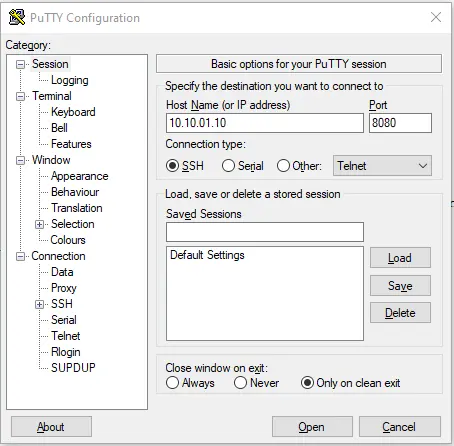
telnetclient application likePuTTY, which can be downloaded from here. Don’t forget to selectOtherandTelnetin the connection type.See the screenshot below.
-
Insert the IP and port, then click
Open.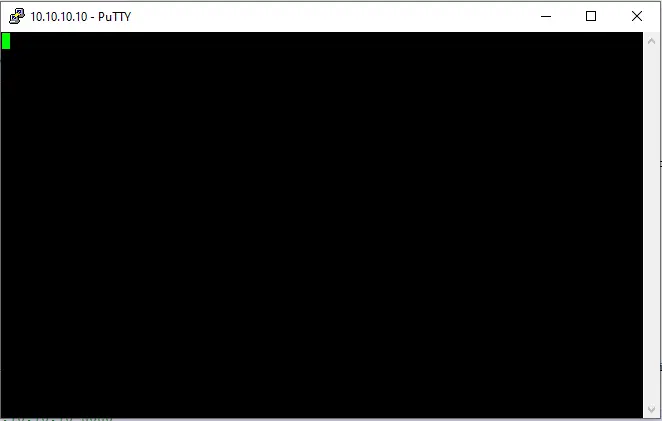
-
Now, we can use this terminal to send data over a connection and listen on a port. For example:
This is PowerShell Listen on Port Test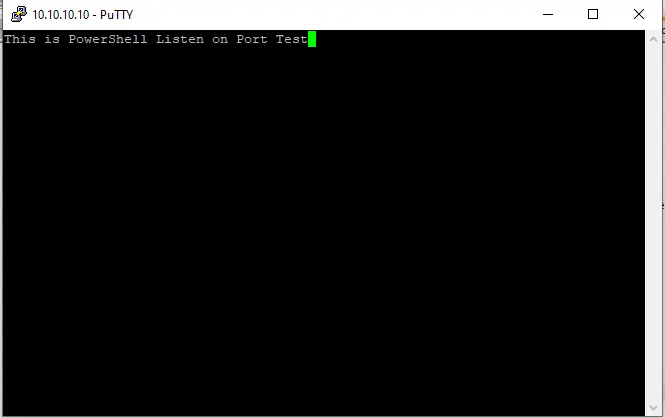
-
The above-sent data will be saved the in the file
'C:\Users\Sheeraz\demo.txt', which means listening on the port is performed.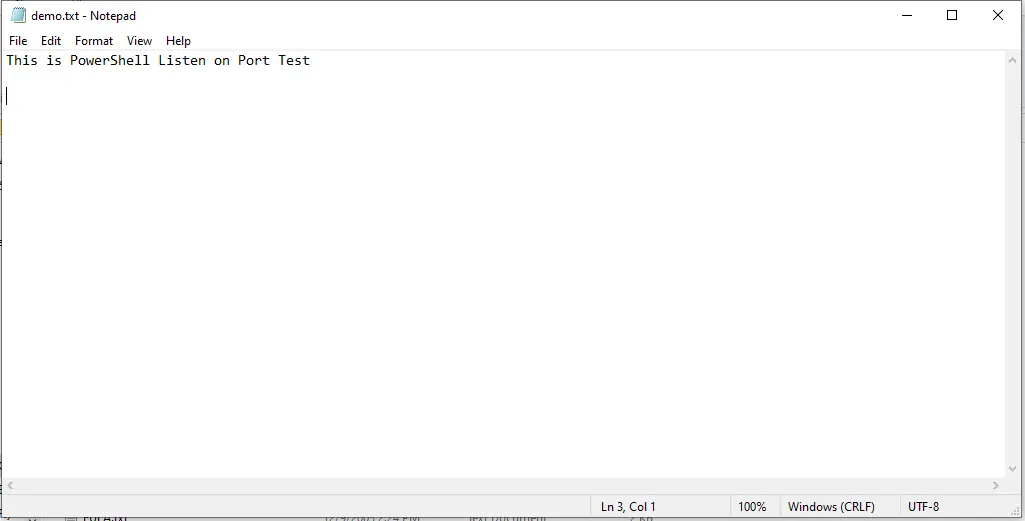
-
Finally, to close the TCP connection, run the
quitcommand.
-