File Chooser in Java
Java Swing package provides the functionality to choose a file in Java.
This tutorial demonstrates how to choose a file in Java.
File Chooser in Java
JFileChooser from the Java Swing package is used to choose a file in Java. Java Swing from Java™ Foundation Classes (JFC) contains many features used to build GUI.
JFileChooser is an effective and easy way for users to choose a directory or a file. A few JFileChooser constructors for different selections are shown in the table below.
| Constructor | Description |
|---|---|
JFileChooser() |
This constructor will select the file from a default directory. |
JFileChooser(File currentDirectory) |
This constructor will select the file from the current directory. |
JFileChooser(String currentDirectoryPath) |
This constructor will select the file from the given directory. |
Let’s try an example to choose a file using JFileChooser in Java.
package delftstack;

import java.awt.BorderLayout;
import java.awt.FlowLayout;
import java.awt.LayoutManager;
import java.awt.event.ActionEvent;
import java.awt.event.ActionListener;
import java.io.File;
import javax.swing.JButton;
import javax.swing.JFileChooser;
import javax.swing.JFrame;
import javax.swing.JLabel;
import javax.swing.JPanel;

public class File_Chooser {
  public static void main(String[] args) {
    File_Chooser_Window();
  }

  private static void File_Chooser_Window() {
    JFrame File_Chooser_Frame = new JFrame("File Chooser");
    File_Chooser_Frame.setDefaultCloseOperation(JFrame.EXIT_ON_CLOSE);
    Create_UI(File_Chooser_Frame);
    File_Chooser_Frame.setSize(560, 200);
    File_Chooser_Frame.setLocationRelativeTo(null);
    File_Chooser_Frame.setVisible(true);
  }

  private static void Create_UI(final JFrame File_Chooser_Frame) {
    JPanel File_Chooser_Panel = new JPanel();
    LayoutManager Layout_Manager = new FlowLayout();
    File_Chooser_Panel.setLayout(Layout_Manager);

    JButton Choose_Button = new JButton("Choose File");
    final JLabel J_Label = new JLabel();

    Choose_Button.addActionListener(new ActionListener() {
      @Override
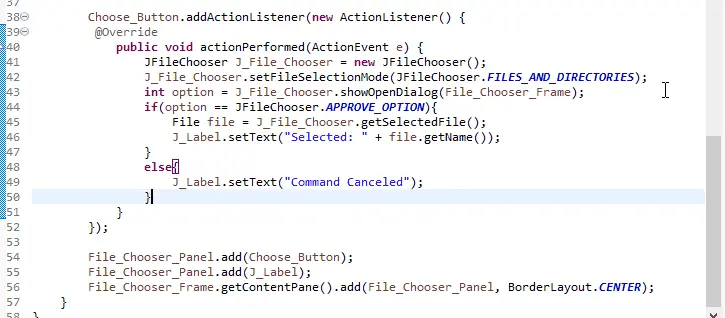
      public void actionPerformed(ActionEvent e) {
        JFileChooser J_File_Chooser = new JFileChooser();
        J_File_Chooser.setFileSelectionMode(JFileChooser.FILES_AND_DIRECTORIES);
        int option = J_File_Chooser.showOpenDialog(File_Chooser_Frame);
        if (option == JFileChooser.APPROVE_OPTION) {
          File file = J_File_Chooser.getSelectedFile();
          J_Label.setText("Selected: " + file.getName());
        } else {
          J_Label.setText("Command Canceled");
        }
      }
    });

    File_Chooser_Panel.add(Choose_Button);
    File_Chooser_Panel.add(J_Label);
    File_Chooser_Frame.getContentPane().add(File_Chooser_Panel, BorderLayout.CENTER);
  }
}
The code above will create a frame with a Choose File button. See the output below.

Sheeraz is a Doctorate fellow in Computer Science at Northwestern Polytechnical University, Xian, China. He has 7 years of Software Development experience in AI, Web, Database, and Desktop technologies. He writes tutorials in Java, PHP, Python, GoLang, R, etc., to help beginners learn the field of Computer Science.
LinkedIn Facebook