Node Sass Could Not Find a Binding for Your Current Environment
-
What Is
Node Sass could not find a binding for your current environment -
Causes of
Node Sass could not find a binding for your current environment -
Solutions to
Node Sass could not find a binding for your current environment
In this lesson, we will learn the solution to the Node Sass could not find a binding for your current environment issue. But before we can begin, we need to identify the nature of the problem.
What Is Node Sass could not find a binding for your current environment
When you use a node version manager like nvm, it may occasionally screw with some of the npm module paths, which causes them to attempt to use a version different from the one currently being used.
Causes of Node Sass could not find a binding for your current environment
The following are examples of possible reasons for the error:
-
This is because a single computer might have not one but two different versions of
Nodeinstalled, a global and a project-specific version. When the Gulp build is being executed while using the Node.js4.xversion, the Sass file will be appropriately compiled.Go to
C:Program Files (x86)\nodejsand check to see whether you have a version ofnode.jsin addition to the VS default installation. We may have two different versions ofNode.jsinstalled. -
This problem manifests itself when
node-sassdoes not have the appropriate binding for the operating system that is currently being used. This problem often occurs when we useDockerand addnode modulesdirectly to the container filesystem in ourDockerfileor mount them using aDocker volume.Both of these methods are described in the previous sentence. It is quite likely that the architecture of the container is different from that of our existing operating system.
For instance,
node-sassis installed onmacOS, but the machine container’s operating system isUbuntu. -
The version of Node that the
node-sassNode module uses is determined by thedarwinbinary file it uses. This problem arises either because the binary file is not downloaded or because the incorrect binary file is downloaded. -
If you haven’t deleted the
/.npmand/.node-gypfolder from your computer, you may have this issue. This is since the Node version contained inside the/.node-gypfolder may be different from the version of the Node that is installed elsewhere on your computer. -
In other instances, the
Task RunnerExplorer is to blame for causing this problem, since it aims to solve our project’s problem. If we go to the project using the drop-down list, the button labeledrefreshnext to theTask RunnerExplorer will display the applicable tasks.
Solutions to Node Sass could not find a binding for your current environment
The following are possible solutions for the given error:
for MacOS
-
CMD+SHIFT+G
-
/usr/local/lib/node-sass -
Right-click and rename (should still be the same
node-sass). -
Then run this command:
npm install node-sass -g.
for Microsoft Visual Studio
-
Visual Studio 2015:
Follow these steps:
Tools>Options>Projects and Solutions>External Web Tools -
Visual Studio 2017, 2019, and 2022
-
Tools>Options>Projects and Solutions>Web Package Management>External Web Tools -
Reorder path
$(DevEnvDir)\Extensions\Microsoft\Web Tools\External. -
Delete the folder named
node modules, then runnpm rebuild node-sass.
for Windows
After reinstalling the Node modules, the anticipated binary of
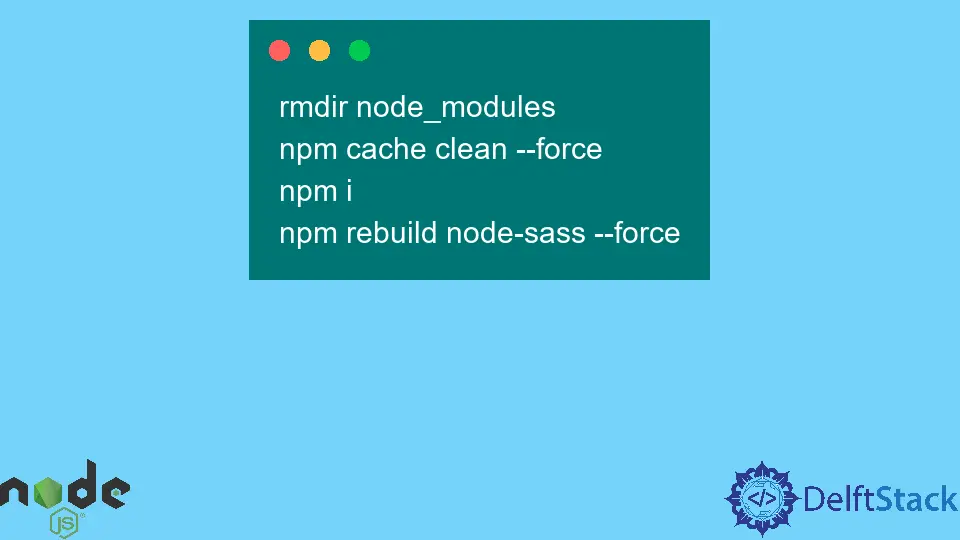
node-sasswill be downloaded. For some users, you must ensure that the Node version is compatible with thenode-sassversion.rmdir node_modules npm cache clean --force npm i npm rebuild node-sass --forcefor Docker
-
Add a
.dockerignore, and inside addnode_modules. -
The bindings for the
dockerenvironment will be installed during annpm installrather than the bindings for the environment of your local computer.
When 2 Versions Installed
-
Go to
Tools>Options>Projects & solutions>Web package management>External web tools -
To add a new entry, use the button located in the top-right corner of the block of buttons.
-
Enter
C:\Program Files (x86)\nodejsand validate by pressing Enter. -
Put it at the very top of the priority list.
for Missing Bindings
Here is how to resolve it:
-
Download the missing binding file.
-
Rename the file
binding.node. -
Create the
node_modules/node-sass/vendor/darwin-x64-11(path from the error message) directory if it doesn’t exist. -
Add the binding file to
node_modules/node-sass/vendor/darwin-x64-11.
Enjoying our tutorials? Subscribe to DelftStack on YouTube to support us in creating more high-quality video guides. Subscribe -

I am Waqar having 5+ years of software engineering experience. I have been in the industry as a javascript web and mobile developer for 3 years working with multiple frameworks such as nodejs, react js, react native, Ionic, and angular js. After which I Switched to flutter mobile development. I have 2 years of experience building android and ios apps with flutter. For the backend, I have experience with rest APIs, Aws, and firebase. I have also written articles related to problem-solving and best practices in C, C++, Javascript, C#, and power shell.
LinkedIn