TUTORIAL · Tkinter
Tkinter 教程 - 多選按鈕
本節教程介紹了 Tkinter checkButton 多選按鈕,包括取消、選擇按鈕以及如何設定多選按鈕的預設值等。
Checkbutton 多選按鈕控制元件是一個包含多個可選項的控制元件。多選按鈕可以包含文字或影象。它還可以繫結單擊多選按鈕時要呼叫的回撥函式。
要在現有父視窗中建立一個 Checkbutton 視窗控制元件,請使用
tk.Checkbutton(parent, option, ...)
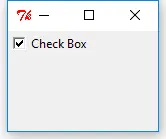
Tkinter Checkbutton 基本示例
import tkinter as tk

app = tk.Tk()
app.geometry("150x100")

chkValue = tk.BooleanVar()
chkValue.set(True)

chkExample = tk.Checkbutton(app, text="Check Box", var=chkValue)
chkExample.grid(column=0, row=0)

app.mainloop()
chkValue = tk.BooleanVar()
每個多選按鈕都應與變數相關聯。選擇/取消選擇時,變數的資料型別由多選按鈕來確定。
chkValue.set(True)
它設定了多選按鈕的原始值。因為它只是賦予為 Boolean 資料型別,所以這裡只有兩個選項,True 或 False。
chkExample = tk.Checkbutton(app, text="Check Box", var=chkValue)
現在,這裡新建了一個 Checkbutton 例項,並且使用我們在上面建立的變數 chkValue。
chkExample.grid(column=0, row=0)
除了在 Tkinter 標籤部分中引入的 pack,grid 是另一種型別的 Tkinter 佈局管理器。
Tkinter 有三個佈局管理器,
pack- 打包grid- 網格place- 放置
我們將在本教程的後半部分介紹這些佈局/幾何管理器。
Tkinter Checkbutton 選擇/取消選擇
使用者可以單擊 GUI 中的多選按鈕來選擇或取消選擇按鈕。你也可以使用 select() 和 deselect() 方法選擇或取消選中 Checkbutton。
chkExample.select()
print "The checkbutton value when selected is {}".format(chkValue.get())
chkExample.select()
print "The checkbutton value when deselected is {}".format(chkValue.get())
The checkbutton value when selected is True
The checkbutton value when deselected is False
這裡,Checkbutton 的值是通過 get() 方法獲得的。
Tkinter Checkbutton 多選按鈕狀態切換
多選按鈕的狀態可以通過 select() 和 deselect() 修改,也可以使用 toggle() 方法切換。
import tkinter as tk

app = tk.Tk()
app.geometry("150x100")

chkValue = tk.BooleanVar()
chkValue.set(True)

chkExample = tk.Checkbutton(app, text="Check Box", var=chkValue)
chkExample.grid(column=0, row=0)

print "The checkbutton original value is {}".format(chkValue.get())
chkExample.toggle()
print "The checkbutton value after toggled is {}".format(chkValue.get())
chkExample.toggle()
print "The checkbutton value after toggled twice is {}".format(chkValue.get())

app.mainloop()
The checkbutton original value is True
The checkbutton value after toggled is False
The checkbutton value after toggled twice is True
Tkinter Checkbutton 回撥函式繫結
Checkbutton 控制元件用於選擇狀態,它還可以在選擇/取消選擇或更直接,切換時將回撥函式繫結到事件。每當切換多選按鈕狀態時,都會觸發回撥函式。
import tkinter as tk
from _cffi_backend import callback


def callBackFunc():
    print "Oh. I'm clicked"


app = tk.Tk()
app.geometry("150x100")

chkValue = tk.BooleanVar()
chkValue.set(True)

chkExample = tk.Checkbutton(app, text="Check Box", var=chkValue, command=callBackFunc)
chkExample.grid(column=0, row=0)

app.mainloop()
每當你按下按鈕時,你都會看到它在 console 中列印出了 Oh. I'm clicked。
Checkbutton 類中的選項 command 用於在按下按鈕時繫結回撥函式或方法。
更改 Tkinter Checkbutton 多選按鈕預設值
與未選中的 Checkbutton 對應的預設值為 0,並且所選的 Checkbutton 的預設值為 1.你還可以將 Checkbutton 預設值及其關聯的資料型別更改為其他值和/或資料型別。
import tkinter as tk

app = tk.Tk()
app.geometry("150x100")

chkValue = tk.StringVar()

chkExample = tk.Checkbutton(
    app, text="Check Box", var=chkValue, onvalue="RGB", offvalue="YCbCr"
)
chkExample.grid(column=0, row=0)

chkExample.select()
print "The checkbutton value when selected is {}".format(chkValue.get())
chkExample.deselect()
print "The checkbutton value when deselected is {}".format(chkValue.get())

app.mainloop()
The checkbutton value when selected is RGB
The checkbutton value when deselected is YCbCr
chkExample = tk.Checkbutton(
    app, text="Check Box", var=chkValue, onvalue="RGB", offvalue="YCbCr"
)
onvalue 和 offvalue 是更改所選和未選狀態值的選項。它們可以有資料型別,如 Int,String,Float 或其他。
Checkbutton 多選按鈕相關聯的 Tkinter 資料型別應該跟它的 onvalue 和 offvalue 的資料型別相同。否則就會有 _tkinter.TclError 錯誤。