How to Switch Frames in Tkinter
- Understanding Frames in Tkinter
- Method 1: Using the Frame Class
- Method 2: Using the Pack Geometry Manager
- Method 3: Using the Place Geometry Manager
- Conclusion
- FAQ
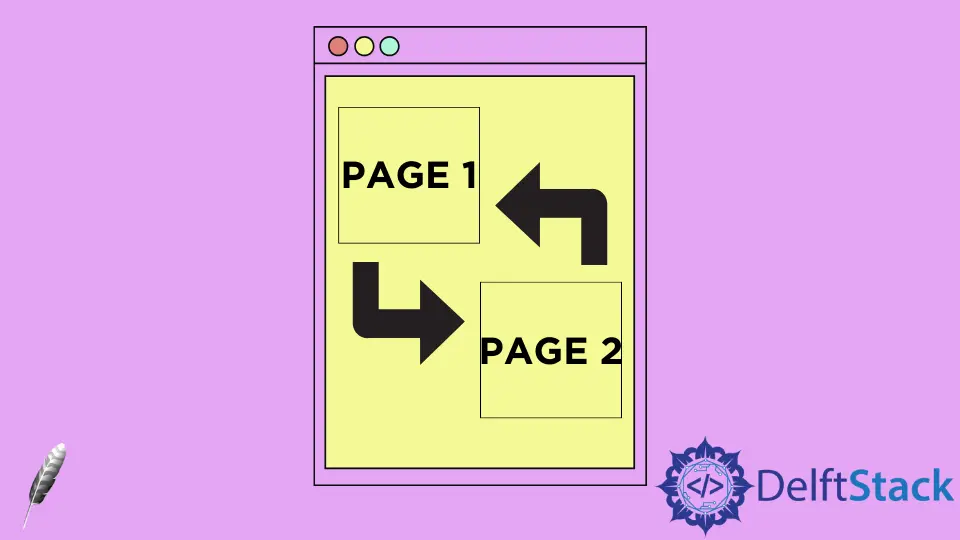
Switching frames in Tkinter is a fundamental skill for any Python developer looking to create multi-page applications. Whether you’re building a simple GUI or a complex software solution, understanding how to navigate between different frames can significantly enhance user experience. In this tutorial, we will explore various methods to switch frames in Tkinter, providing you with the knowledge to implement this feature seamlessly.
Tkinter, Python’s standard GUI toolkit, allows you to create various user interfaces. By using frames, you can organize your layout effectively, making it easier for users to navigate through your application. In this guide, we will walk you through the process of switching frames, complete with code examples and detailed explanations. By the end of this tutorial, you’ll be equipped to enhance your Tkinter applications with dynamic frame switching.
Understanding Frames in Tkinter
Frames in Tkinter serve as containers for organizing widgets. They help in grouping related elements, making your interface more structured. By utilizing frames, you can switch between different views or sections of your application without having to create new windows. This is particularly useful for applications that require multiple forms or settings pages. Let’s dive into how you can switch these frames effectively.
Method 1: Using the Frame Class
One of the most straightforward methods to switch frames in Tkinter is by creating a base class that manages the frames. This approach allows you to define multiple frames and switch between them easily. Below is a simple example that demonstrates how to implement frame switching using a class structure.
import tkinter as tk

class App(tk.Tk):
    def __init__(self):
        super().__init__()
        self.title("Frame Switcher")
        self.geometry("300x200")

        self.frames = {}
        for F in (HomeFrame, SecondFrame):
            frame = F(self)
            self.frames[F] = frame
            frame.grid(row=0, column=0, sticky="nsew")

        self.show_frame(HomeFrame)

    def show_frame(self, cont):
        frame = self.frames[cont]
        frame.tkraise()

class HomeFrame(tk.Frame):
    def __init__(self, parent):
        super().__init__(parent)
        label = tk.Label(self, text="This is the Home Frame")
        label.pack(pady=10)
        button = tk.Button(self, text="Go to Second Frame", command=lambda: parent.show_frame(SecondFrame))
        button.pack()

class SecondFrame(tk.Frame):
    def __init__(self, parent):
        super().__init__(parent)
        label = tk.Label(self, text="This is the Second Frame")
        label.pack(pady=10)
        button = tk.Button(self, text="Go to Home Frame", command=lambda: parent.show_frame(HomeFrame))
        button.pack()

if __name__ == "__main__":
    app = App()
    app.mainloop()
Output:
This is the Home Frame
This is the Second Frame
In this example, we define a main application class App that initializes the Tkinter window. We create two frames: HomeFrame and SecondFrame. Each frame has a label and a button that allows users to switch to the other frame. The show_frame method is responsible for raising the selected frame to the front, effectively switching the view. This method is versatile and can be expanded to include additional frames as needed.
Method 2: Using the Pack Geometry Manager
Another effective way to switch frames in Tkinter is by using the pack geometry manager. This method is particularly useful for simpler applications where you want to manage the layout without complex class structures. Below is an example demonstrating this technique.
import tkinter as tk

class App(tk.Tk):
    def __init__(self):
        super().__init__()
        self.title("Frame Switcher")
        self.geometry("300x200")

        self.home_frame = HomeFrame(self)
        self.second_frame = SecondFrame(self)

        self.home_frame.pack(fill="both", expand=True)

    def show_frame(self, frame):
        frame.pack(fill="both", expand=True)
        if frame == self.home_frame:
            self.second_frame.pack_forget()
        else:
            self.home_frame.pack_forget()

class HomeFrame(tk.Frame):
    def __init__(self, parent):
        super().__init__(parent)
        label = tk.Label(self, text="This is the Home Frame")
        label.pack(pady=10)
        button = tk.Button(self, text="Go to Second Frame", command=lambda: parent.show_frame(parent.second_frame))
        button.pack()

class SecondFrame(tk.Frame):
    def __init__(self, parent):
        super().__init__(parent)
        label = tk.Label(self, text="This is the Second Frame")
        label.pack(pady=10)
        button = tk.Button(self, text="Go to Home Frame", command=lambda: parent.show_frame(parent.home_frame))
        button.pack()

if __name__ == "__main__":
    app = App()
    app.mainloop()
Output:
This is the Home Frame
This is the Second Frame
In this example, we create two frames, home_frame and second_frame, just like in the previous method. However, instead of using grid, we use pack to manage the layout. The show_frame method determines which frame to display and hides the other one using pack_forget(). This method is straightforward and effective for simpler applications, allowing for easy frame management without the need for complex class structures.
Method 3: Using the Place Geometry Manager
The place geometry manager provides an alternative way to switch frames by allowing precise control over the position of each frame. This method is particularly useful if you want to create a custom layout. Here’s how you can implement frame switching using the place manager.
import tkinter as tk

class App(tk.Tk):
    def __init__(self):
        super().__init__()
        self.title("Frame Switcher")
        self.geometry("300x200")

        self.home_frame = HomeFrame(self)
        self.second_frame = SecondFrame(self)

        self.home_frame.place(relwidth=1, relheight=1)

    def show_frame(self, frame):
        frame.place(relwidth=1, relheight=1)
        if frame == self.home_frame:
            self.second_frame.place_forget()
        else:
            self.home_frame.place_forget()

class HomeFrame(tk.Frame):
    def __init__(self, parent):
        super().__init__(parent)
        label = tk.Label(self, text="This is the Home Frame")
        label.pack(pady=10)
        button = tk.Button(self, text="Go to Second Frame", command=lambda: parent.show_frame(parent.second_frame))
        button.pack()

class SecondFrame(tk.Frame):
    def __init__(self, parent):
        super().__init__(parent)
        label = tk.Label(self, text="This is the Second Frame")
        label.pack(pady=10)
        button = tk.Button(self, text="Go to Home Frame", command=lambda: parent.show_frame(parent.home_frame))
        button.pack()

if __name__ == "__main__":
    app = App()
    app.mainloop()
Output:
This is the Home Frame
This is the Second Frame
In this example, we utilize the place geometry manager to position our frames. The show_frame method is similar to previous examples, but instead of using pack or grid, we use place to manage the layout. This approach gives you more control over where each frame appears, making it a great option for custom layouts.
Conclusion
Switching frames in Tkinter is a crucial aspect of building dynamic and user-friendly applications. By understanding the various methods—whether using class structures, the pack manager, or the place manager—you can create flexible interfaces that enhance user experience. Each method has its own advantages, and the choice depends on the complexity and requirements of your application. Now that you have a solid understanding of how to switch frames in Tkinter, you can apply these techniques to your projects and elevate your GUI development skills.
FAQ
-
What is Tkinter used for?
Tkinter is used for creating graphical user interfaces (GUIs) in Python applications. -
Can I switch frames without using classes in Tkinter?
Yes, you can switch frames without classes by using functions and managing frames directly, but using classes helps maintain better organization. -
Which geometry manager is best for frame switching?
The best geometry manager depends on your specific needs;packis simple,gridis versatile, andplaceoffers precise control. -
How can I add more frames to my Tkinter application?
You can add more frames by creating additional frame classes and managing them in your main application class. -
Can Tkinter be used for web applications?
No, Tkinter is specifically designed for desktop applications. For web applications, consider using frameworks like Flask or Django.

Founder of DelftStack.com. Jinku has worked in the robotics and automotive industries for over 8 years. He sharpened his coding skills when he needed to do the automatic testing, data collection from remote servers and report creation from the endurance test. He is from an electrical/electronics engineering background but has expanded his interest to embedded electronics, embedded programming and front-/back-end programming.
LinkedIn Facebook