HOWTO · PowerShell
PowerShell Set-Content Cmdlet
The Set-Content cmdlet is widely used to write new text content to an existing file or replace an existing text content with a given text value. It consists of several optional arguments to facilitate different features which are useful to the users.
On this page
Sometimes, we might need to write the same text content into multiple text files. PowerShell provides a useful cmdlet to write text content via the command line.
In this article, we will be focusing on the Set-Content cmdlet.
the Set-Content Cmdlet in PowerShell
The Set-Content cmdlet writes new text content or replaces the existing text in a file. This is more similar to the > operator in Linux.
The Set-Content cmdlet differs from the Add-Content string processing cmdlet, which appends text to a specified file. The sc can be used as the alias for the Set-Content command.
Syntax:
Set-Content
[-Path_to_file] <string[]>
[-Value] <Object[]>
[-PassThru]
[-Filter <string>]
[-Include <string[]>]
[-Exclude <string[]>]
[-Force]
[-Credential <pscredential>]
[-WhatIf]
[-Confirm]
[-NoNewline]
[-Encoding <Encoding>]
[-AsByteStream]
[-Stream <string>]
[<CommonParameters>]
The command takes quite a large number of arguments, and the purpose of a few has been described in the following section.
| Parameter | Description |
|---|---|
-Path_to_file |
You can specify an existing text file path or create a new one in the given path. |
-Value |
This parameter is used to pass the text content you will write. |
-Force |
The -Force argument replaces the content in the read-only file. |
-Encoding |
The text encoding of the target file is set to utf8NoBOM by default. |
-Exclude |
The items that need to be excluded in this operation are specified as a string array. |
-Include |
This is the opposite of the -Exclude argument. This argument specifies an array of items that need to be included in the Set-Content operation. |
-PassThru |
When the PassThru argument is specified, the command outputs the text content that has been added to the text file. |
Usually, the -Value parameter is usually used to specify the text content written in the file. In addition, you can pipe the text content from another object as well.
If you pass a non-string object to the Set-Content command, it will first convert the non-string object to a string and writes it to the file.
Use Set-Content Cmdlet to Write Text Content to a Single File
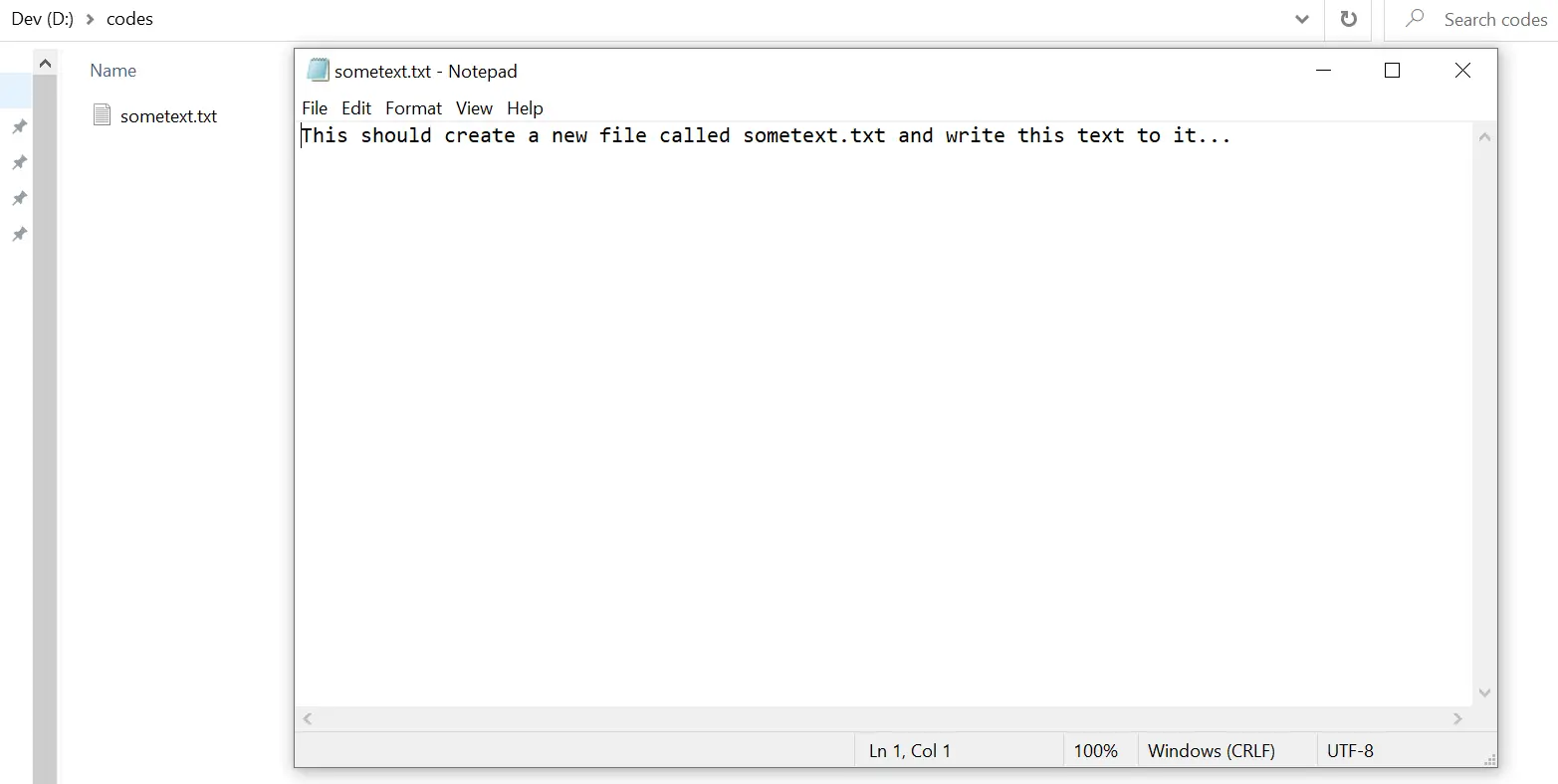
Let’s write text content to a file called sometext.txt that is not currently existing. So, the Set-Content command would create this file first and write the content passed with the -Value argument.
Command:
Set-Content -Path D:\codes\sometext.txt -Value "This should create a new file called sometext.txt and write this text to it..."

Output:
Use Set-Content Cmdlet to Replace the Text Content in Multiple Files
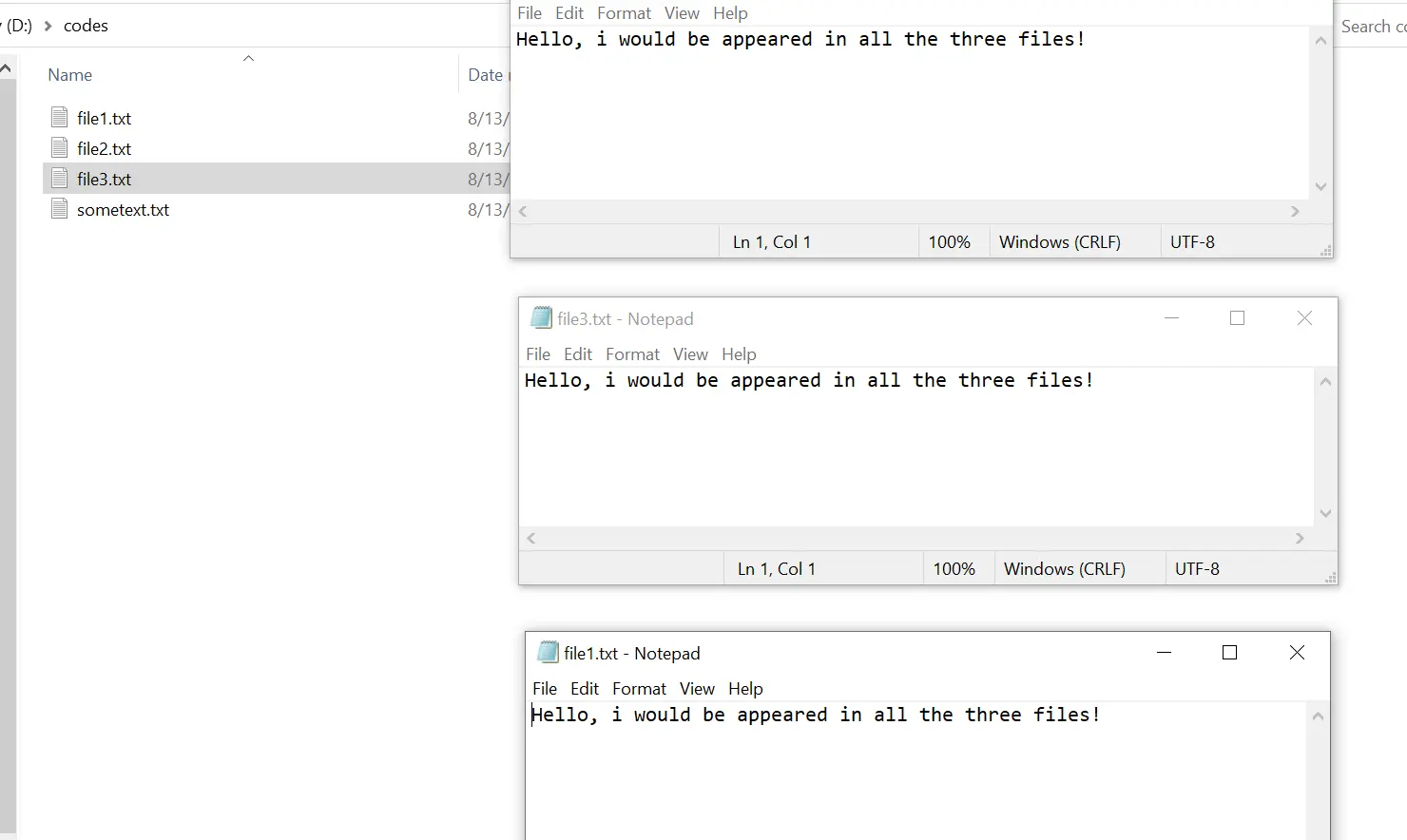
Let’s assume we have three files file1.txt, file2.txt, and file3.txt. We will replace the content in those three files with the following text.
Hello, i would be appeared in all the three files!
In this case, the Set-Content command uses the wildcard characters to match the given three files.
Command:
Set-Content -Path D:\codes\file*.txt -Value "Hello, i would be appeared in all the three files!"

The three files match the pattern specified by file* txt, which forces the command to match all the files starting with the file phrase.
Output:
Use Set-Content to Pass the Text Content Through a PIPE
It is not necessary to specify the -Value argument always. Instead, we can PIPE a text object to the Set-Content as follows.
Command:
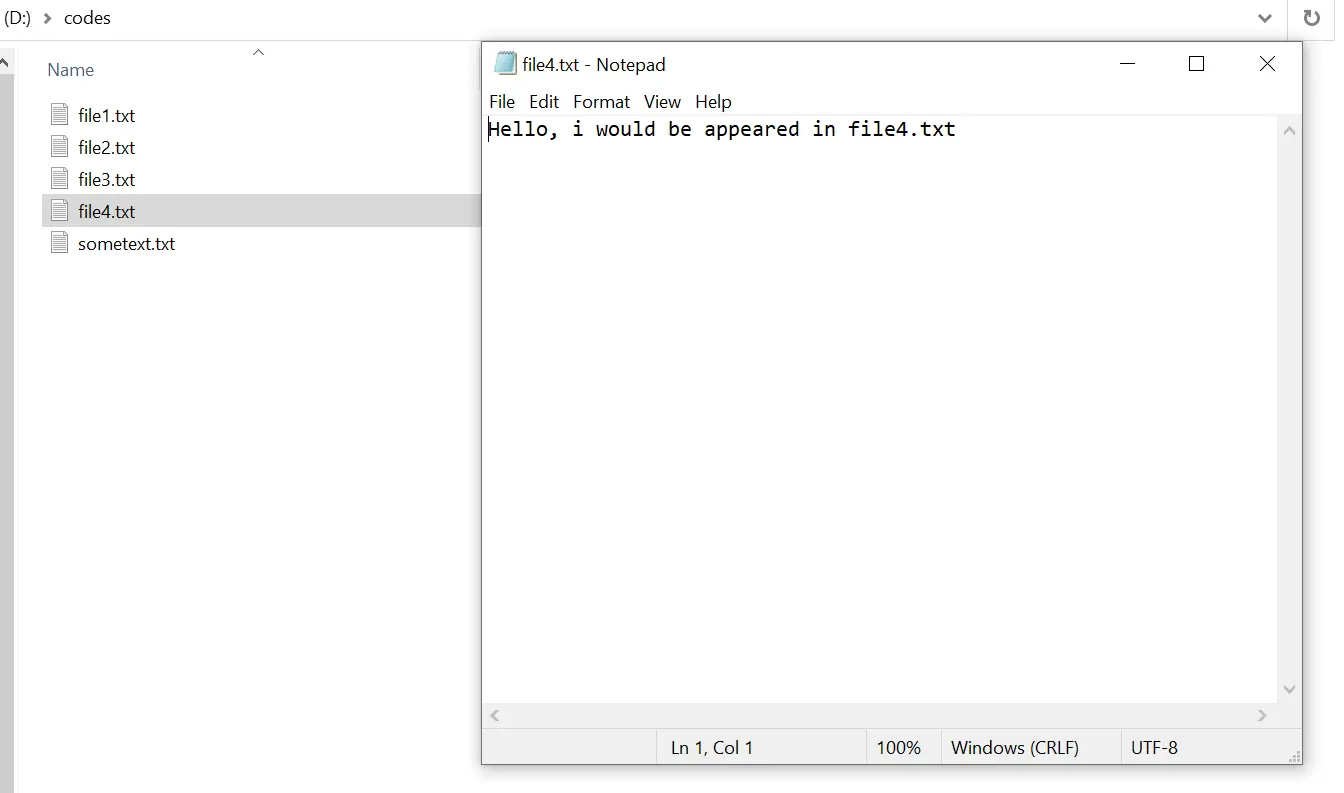
(Get-Content D:\codes\file1.txt).replace('all the three files!', 'file4.txt') | Set-Content D:\codes\file4.txt
The Get-Content cmdlet reads the text content from the file1.txt file. Then, it uses the replace command to replace all the three files! text with the file4.txt.
Finally, the constructed text would be written into the file4.txt file.
Output: