HOWTO · Bash
How to Solve Error: Make Command Not Found on Cygwin
This tutorial demonstrates how to solve the bash: make: command not found error in Cygwin.
Cygwin allows Windows users access to certain Linux functionalities and contains a large collection of GNU and Open Source tools often found within popular Linux distributions.
When using Cygwin, it is highly common to face command not found error messages; in our case, it is the make command not found. This error message comes to light when the make utility is unavailable within our terminal.
This article will discuss ways to deal with bash: make: command not found in Cygwin.
Solve bash: make: command not found in Cygwin via Installation
The make utility allows us to build, maintain and compile large or groups of programs and automatically determine which parts of a large program need to be recompiled and make use of certain arguments or parameters to recompile such programs.
A typical make command is structured like the below and often uses a makefile.
make [ -f makefile ] [ options ] ... [ targets ] ...
Within Cygwin Terminal, we can use the make utility; however, depending on how we install it, we might not have access to it and might get the make command not found.
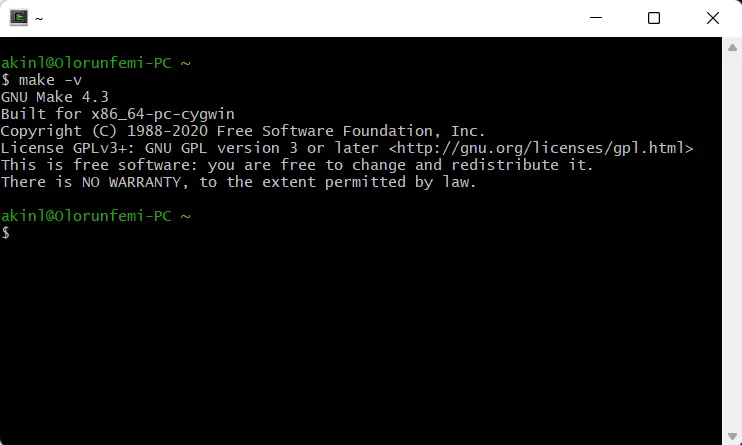
To check if make is available within your Cygwin Terminal, accessing make directly or via its debug mode will give you an output or error. It is not present if it gives you the make command not found error.
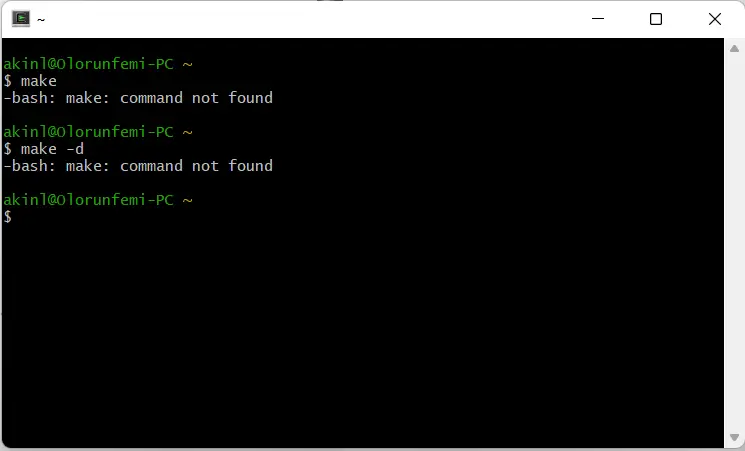
Therefore, if you use the make command with other arguments, you should see an error message similar to the above image. Now that we have established that it’s because the make utility or package isn’t present, the goal is to install it.
With the Cygwin installation file, setup-x86_64.exe, you employed to install the terminal in the package, we can update our existing installation by selecting a package.
Follow the following steps, and you can update your existing installation with the make utility tool within your Cygwin Terminal.
-
Go to your
setup-x86_64.exeand start the installation like you did when installing Cygwin for the first time. If you happen to have deleted the file, you can go to Cygwin installation section to download the setup file (roughly 1.3 MB).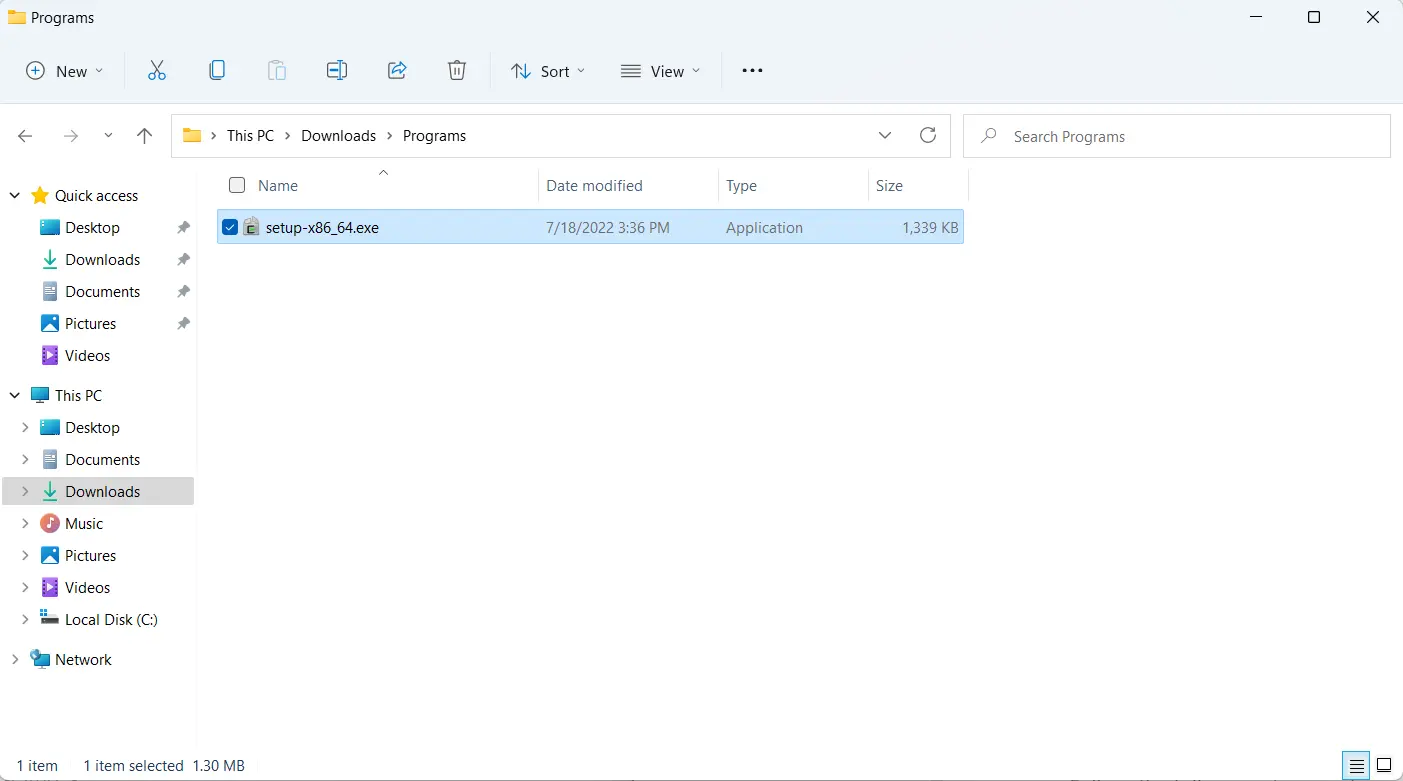
-
Select a
Download Sourceand the sameRoot Install Directoryas the last time to prevent any issues. Also, the install conditions need to be the same to prevent two instances of Cygwin Terminal.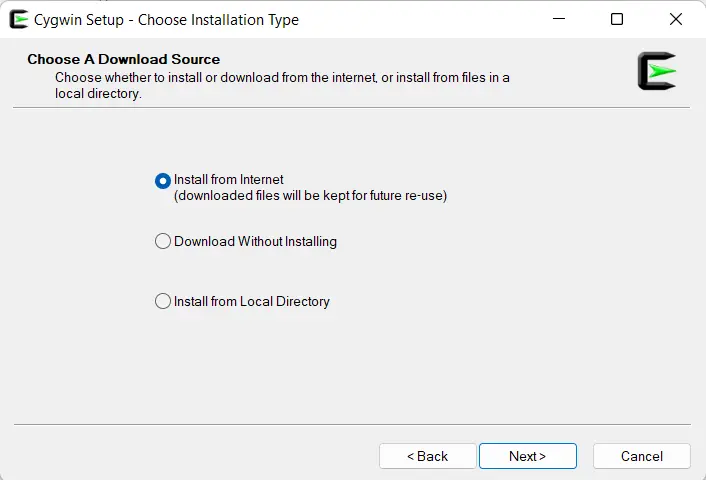
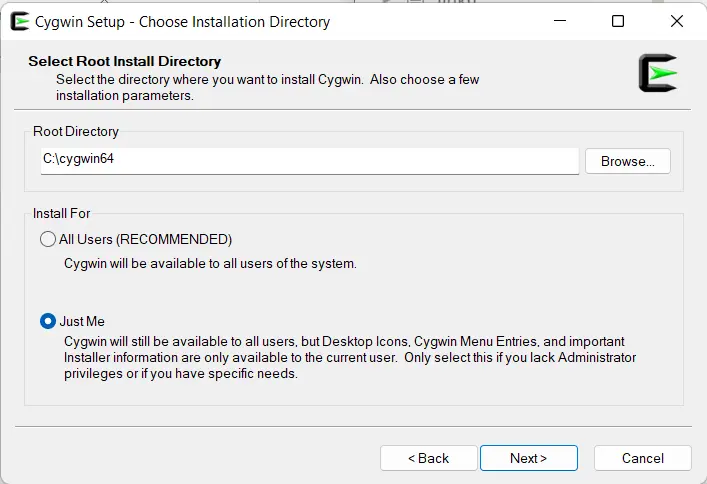
-
Select the same
Local Package Directoryas the last time, but if you don’t remember, do leave it as what is recommended.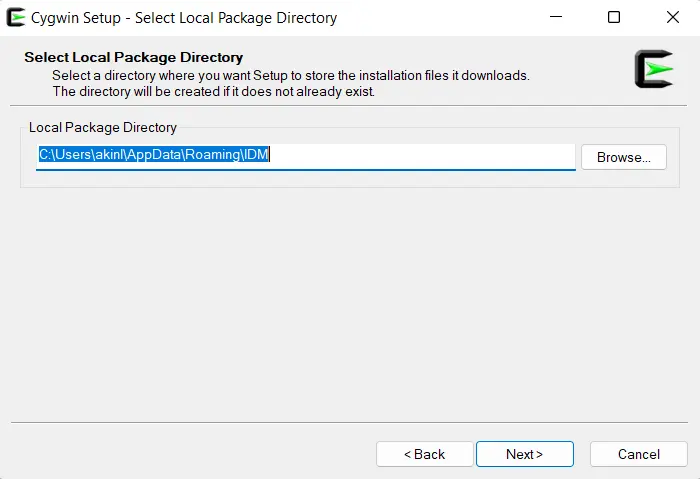
-
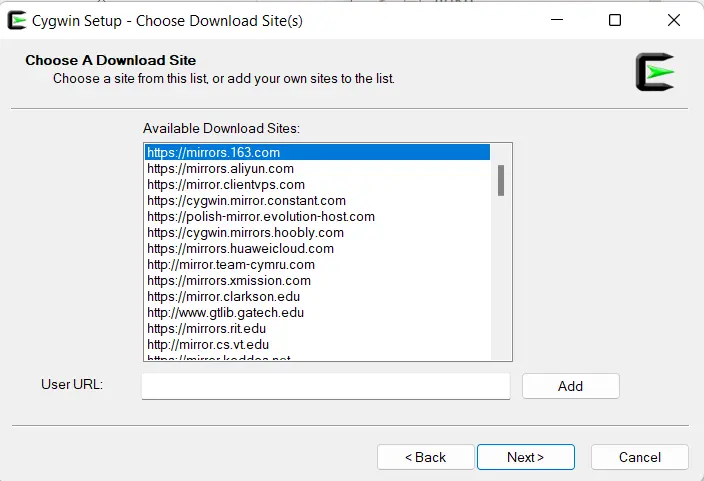
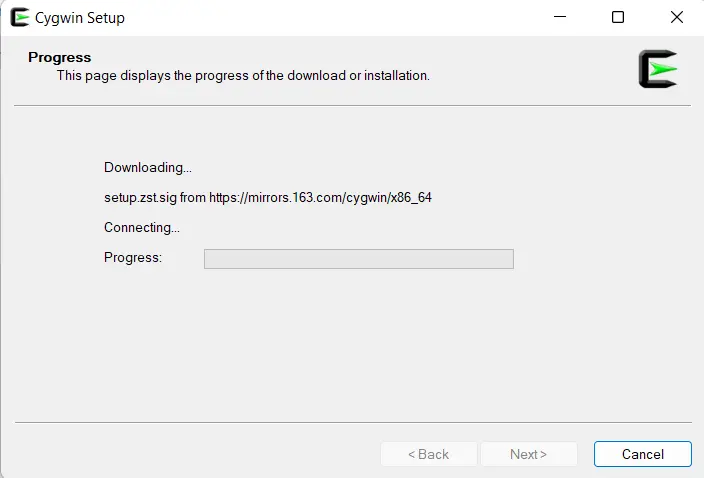
Select your internet connection, and select a download site; the first one is most preferred.
-
Change the
viewtab toFull, search formakewithin the search field, and scroll to findmake(highlighted) among the package list. Remember to double-click theSkipvalue to see the version.Also, you can select
make-debuginfoto allow easy debugging mode. SelectNext.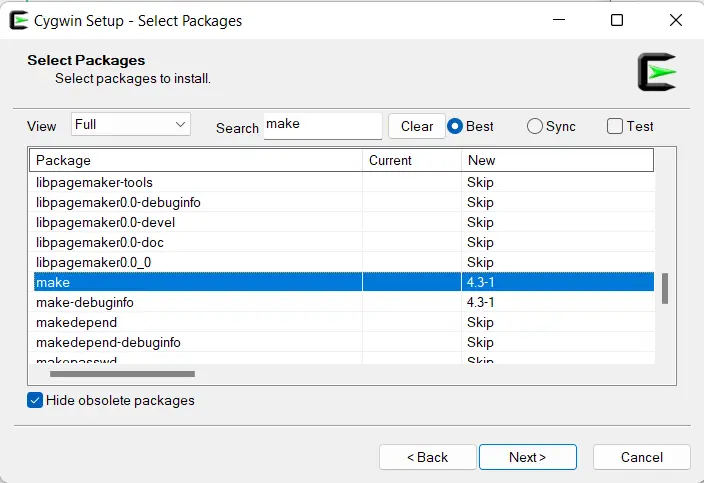
-
Check the
Review and confirm changesscreen to make suremakeinstalls.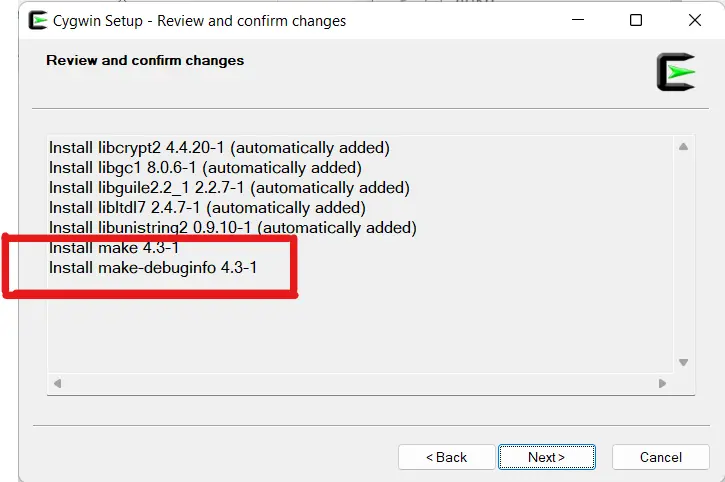
-
You should download progress like the image below.
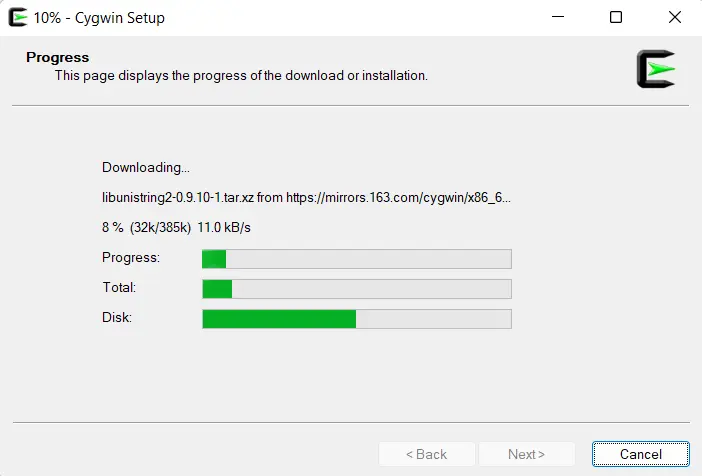
-
The update installation is done, and now we will have the
makeutility available via the Cygwin Terminal.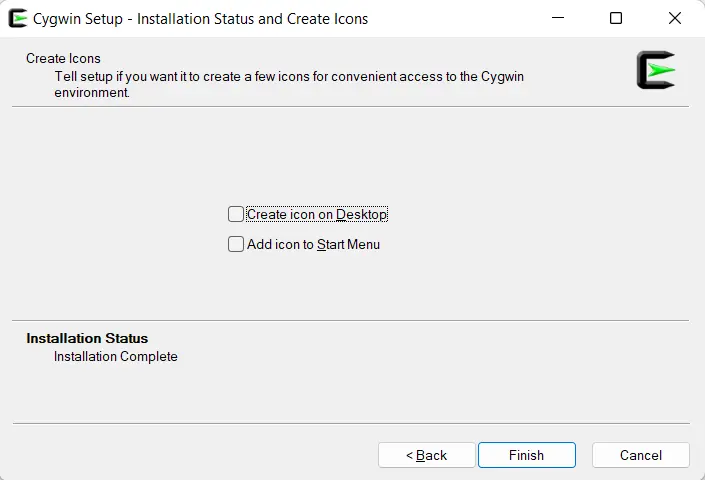
Now, let’s play with the make command to see if the same errors are present. If we use the make command, it gives us a make error telling us No targets were specified and no makefile found.
That shows us that we have make available.
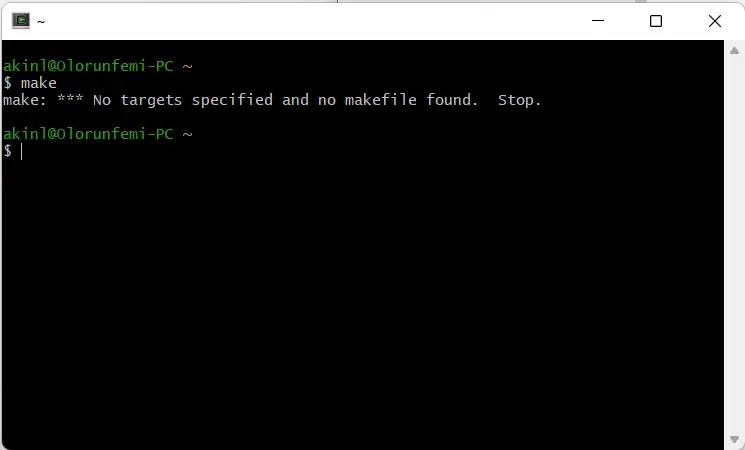
Now, with the following command, let’s check the version (the ultimate check to ensure that make is available for you).
make -v
The output:
GNU Make 4.3
Built for x86_64-pc-cygwin
Copyright (C) 1988-2020 Free Software Foundation, Inc.
License GPLv3+: GNU GPL version 3 or later <http://gnu.org/licenses/gpl.html>
This is free software: you are free to change and redistribute it.
There is NO WARRANTY, to the extent permitted by law.
Solve bash: make: command not found in Cygwin via apt-cyg
If you have apt-cyg, the package manager utility, which allows you to track installed packages on Cygwin, then you can easily solve the make command not found easily.
With apt-cyg, you can install, remove, download, and retrieve packages, among other operations. Here, we will use apt-cyg to install make using the following command.
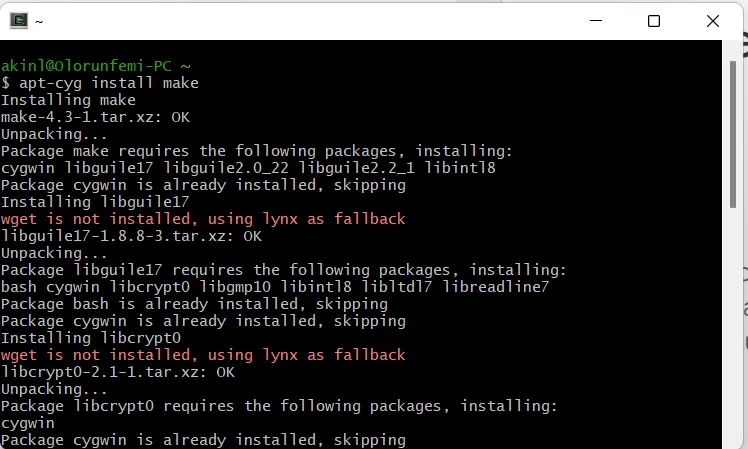
apt-cyg install make
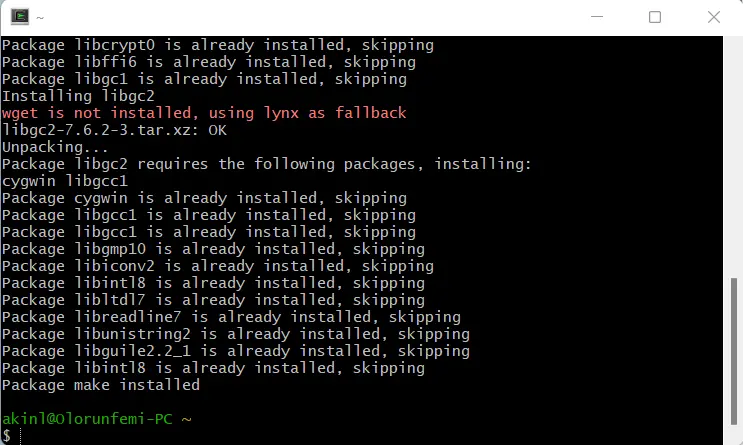
When we use the above command in Cygwin, the below should be the outcome.
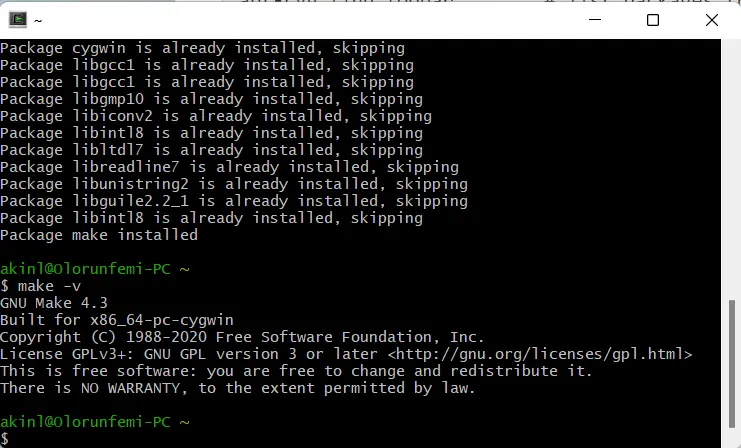
Now, let’s check if the operation was successful by checking the version of make.
make -v
Suppose you don’t have apt-cyg, a great tool on Cygwin which allows you to install, update or remove packages without repeating the installation process as in the above section.
In that case, you will need to do the update installation using the Cygwin installation file, just one more time. One last time, and you won’t need the file anymore.
After starting the process of updating the installation, once you reach the Select Package screen, search for lynx and install it. Afterward, open your Cygwin Terminal, and enter the following commands sequentially.
lynx -source rawgit.com/transcode-open/apt-cyg/master/apt-cyg > apt-cyg
install apt-cyg /bin
The last command installs apt-cyg, which will now be used to install any other package or utility that’s not present within your existing installation.
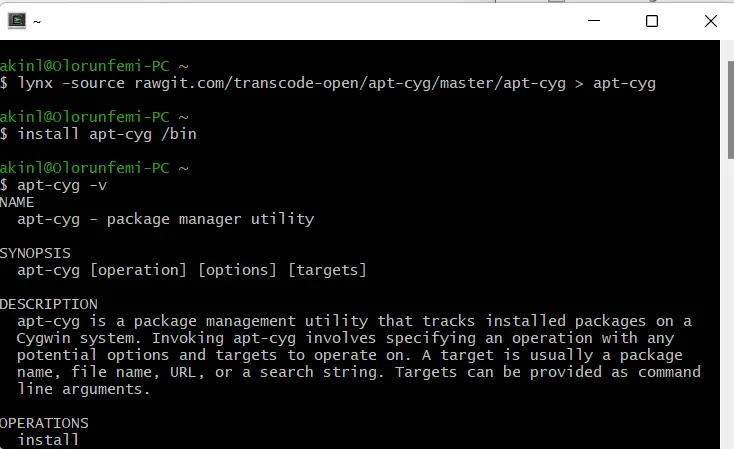
You can check if the apt-cyg installation was complete using the apt-cyg -v command. Also, with a simple command, you can download any package or utility.
apt-cgy install utility-name