HOWTO · Java
How to Set Library Path in Java
This tutorial demonstrates how to set a library path in Java.
This tutorial demonstrates how to set a library path in Java.
Library Path in Java
Whenever a library is not working in Java, its path might have a problem, and we have to set the path for that library to use in our code. We can set the path for the library using the command prompt, a Java source code, or from the IDE.
Set Library Path in Java Using the Command Line
The library path can be set in the Windows command line or Linux/macOS terminal. Run the following command to set the library path using the command line or terminal:
java -Djava.library.path=<path_to_library_dll> <main_class>
Where path_to_library_dll is the path to the DLL file of the library, and main_class is the library’s name.
Set Library Path in Java Using a Source Code
We can also set the library path using the Java System.setProperty() method. The method takes a pair of the key-value as parameters where the key is the java.library.path and the value is the path to library DLL.
Here is the syntax:
System.setProperty("java.library.path", "/ path / to / library");
Here is an example to show if the java.library.path is set in Java or not:
package delftstack;

import java.util.Properties;

public class Example {
  public static void main(String[] a) {
    System.out.println(System.getProperty("java.library.path"));
  }
}
The code above will show the library path. If it is not set, we can insert the above syntax into the code to set a new library path.
Here is the output:
C:\Program Files\Java\jdk-17.0.2\bin;C:\WINDOWS\Sun\Java\bin;C:\WINDOWS\system32;C:\WINDOWS;C:/Program Files/Java/JDK-17.0.2/bin/server;C:/Program Files/Java/JDK-17.0.2/bin;C:\Program Files\Common Files\Oracle\Java\javapath;C:\Program Files (x86)\Common Files\Oracle\Java\javapath;C:\WINDOWS\system32;C:\WINDOWS;C:\WINDOWS\System32\Wbem;C:\WINDOWS\System32\WindowsPowerShell\v1.0\;C:\WINDOWS\System32\OpenSSH\;C:\Program Files\Pandoc\;C:\Program Files\Microsoft\Web Platform Installer\;C:\Users\Sheeraz\AppData\Local\Microsoft\WindowsApps, C:\php74;C:\Users\Sheeraz\AppData\Local\Microsoft\WindowsApps, C:\php74;C:\Program Files\dotnet\;C:\php74;C:\Program Files\MATLAB\R2016a\runtime\win64;C:\Program Files\MATLAB\R2016a\bin;JAVA_OPTS=%JAVA_OPTS%;C:\Program Files (x86)\dotnet\;C:\Program Files\Java\jdk-17.0.2\bin;C:\Program Files\MySQL\MySQL Shell 8.0\bin\;C:\Users\Sheeraz\AppData\Local\Microsoft\WindowsApps;C:\php74;C:\Program Files\gs\gs9.55.0\bin;C:\Program Files\JetBrains\IntelliJ IDEA 2021.3.2\bin;;C:\Users\Sheeraz\AppData\Roaming\npm;C:\Users\Sheeraz\OneDrive\Desktop;;.
Set Library Path in Java Using Eclipse IDE
Setting the library path through Eclipse is also an easy operation. Just follow the few simple steps described below:
-
In Eclipse, right-click on the project name and go to Properties.
-
Go to Java Build Path.
-
Select Libraries on the Java Build Path page.
-
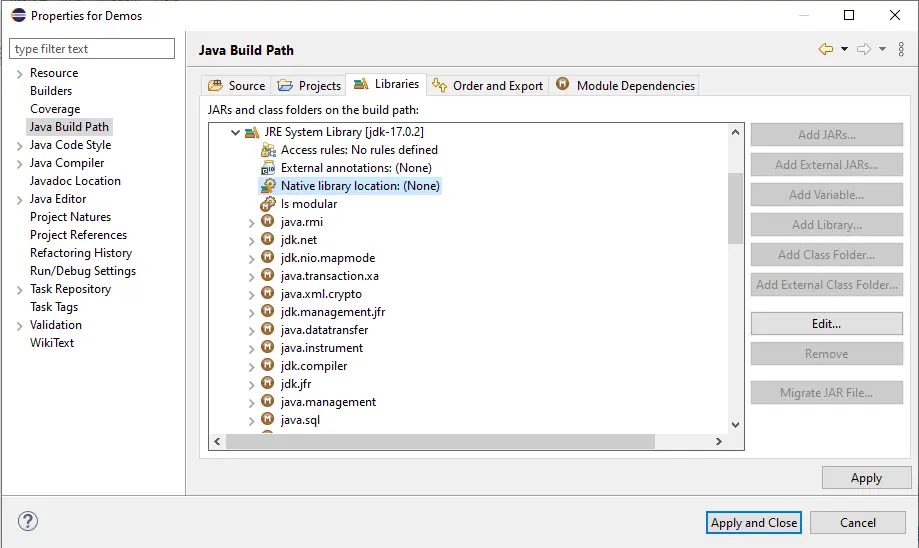
On the Libraries page, find JRE System Library and expand it.
-
Select Native Library Location and click Edit.
-
Click External Folder and select the path to your Java Library Path.
-
Click OK and Apply and Close.
Following the above steps, your Java library path will be set using Eclipse.