Tkinter ボタンのサイズを変更する方法
胡金庫
2025年2月12日
Tkinter
Tkinter Button
-
Tkinter
Buttonのサイズを設定するheightとwidthのオプションを指定する -
Tkinter の
ボタンのピクセルにwidthとheightを設定する -
初期化後に Tkinter の
ボタンサイズを変更
この記事に合わせて、詳しいYouTube動画を作成しました。下に埋め込まれています!
Tkinter Button ウィジェットの height および width オプションは、初期化中に作成されるボタンのサイズを指定します。初期化後も、configure メソッドを使用して height および width オプションを構成し、Tkinter の Button ウィジェットのサイズをプログラムで変更できます。
Tkinter Button のサイズを設定する height と width のオプションを指定する
tk.Button(self, text="", height=20, width=20)
height と width はテキスト単位の単位で 20 に設定されています。デフォルトのシステムフォントでは、水平方向のテキスト単位は文字 0 の幅に等しく、垂直方向のテキスト単位は 0 の高さに等しくなります。
注意
Tkinter が幅と高さの測定にテキスト単位を使用し、インチやピクセルではない理由は、テキスト単位が異なるプラットフォーム間で Tkinter の一貫した動作を保証するためです。
完全な作業コード
import tkinter as tk
import tkinter.font as tkFont

app = tk.Tk()
app.geometry("400x200")


buttonExample1 = tk.Button(app, text="Button 1", width=10, height=10)
buttonExample2 = tk.Button(app, text="Button 2", width=10, height=10)

buttonExample1.pack(side=tk.LEFT)
buttonExample2.pack(side=tk.RIGHT)

app.mainloop()
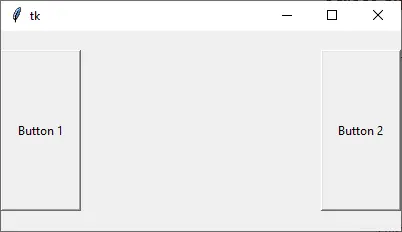
このように、ボタンの高さと幅はピクセル単位で同じではありませんが、width と height はどちらも 10 に設定されています。
Tkinter のボタンのピクセルに width と height を設定する
Tkinter Button ウィジェットの幅または高さ、あるいはその両方を pixels の単位で指定する必要がある場合、仮想の非表示の 1x1 ピクセル画像を Button に追加できます。次に、width と height は pixel の単位で測定されます。
tk.Button(app, text="Button 1", image=pixelVirtual, width=100, height=100, compound="c")
また、非表示の画像とテキストをボタンの中央に配置する必要がある場合は、compound オプションを c または同様に tk.CENTER に設定する必要があります。compound が設定されていない場合、text はボタンに表示されません。
import tkinter as tk
import tkinter.font as tkFont

app = tk.Tk()
app.geometry("300x100")
fontStyle = tkFont.Font(family="Lucida Grande", size=20)

labelExample = tk.Label(app, text="20", font=fontStyle)

pixelVirtual = tk.PhotoImage(width=1, height=1)

buttonExample1 = tk.Button(
    app, text="Increase", image=pixelVirtual, width=100, height=100, compound="c"
)
buttonExample2 = tk.Button(
    app, text="Decrease", image=pixelVirtual, width=100, height=100, compound="c"
)

buttonExample1.pack(side=tk.LEFT)
buttonExample2.pack(side=tk.RIGHT)
app.mainloop()
初期化後に Tkinter のボタンサイズを変更
Button ウィジェットが作成された後、configure メソッドは width や height オプションを設定して Button のサイズを変更できます。
buttonExample1.configure(height=100, width=100)
buttonExample1 の height と width を 100 に設定します。
初期化後にボタンのサイズを変更するための完全な実施例
import tkinter as tk
import tkinter.font as tkFont

app = tk.Tk()
app.geometry("600x500")


def decreaseSize():
    buttonExample1.configure(height=100, width=100)


def increaseSize():
    buttonExample2.configure(height=400, width=400)


pixelVirtual = tk.PhotoImage(width=1, height=1)

buttonExample1 = tk.Button(
    app,
    text="Decrease Size",
    image=pixelVirtual,
    width=200,
    height=200,
    compound="c",
    command=decreaseSize,
)
buttonExample2 = tk.Button(
    app,
    text="Increase Size",
    image=pixelVirtual,
    width=200,
    height=200,
    compound=tk.CENTER,
    command=increaseSize,
)

buttonExample1.pack(side=tk.LEFT)
buttonExample2.pack(side=tk.RIGHT)
app.mainloop()

著者: 胡金庫
