HOWTO · Tkinter
Como mudar o tamanho do botão de Tkinter
Este tutorial introduz como definir e alterar o tamanho do widget do botão Tkinter.
Nesta página
As opções height e width do widget Tkinter Button especificam o tamanho do botão criado durante a inicialização. Após a inicialização, ainda podemos utilizar o método configure para configurar a opção height e width para alterar o tamanho do widget Tkinter Button programmaticamente.
Especificar as opções height e width para definir o tamanho do Button
tk.Button(self, text="", height=20, width=20)
A height e a width estão definidas para ser 20 na unidade de unidades de texto. A unidade de texto horizontal é igual à largura do caractere 0, e a unidade de texto vertical é igual à altura de 0, ambas na fonte padrão do sistema.
Códigos de trabalho completos
import tkinter as tk
import tkinter.font as tkFont

app = tk.Tk()
app.geometry("400x200")


buttonExample1 = tk.Button(app, text="Button 1", width=10, height=10)
buttonExample2 = tk.Button(app, text="Button 2", width=10, height=10)

buttonExample1.pack(side=tk.LEFT)
buttonExample2.pack(side=tk.RIGHT)

app.mainloop()
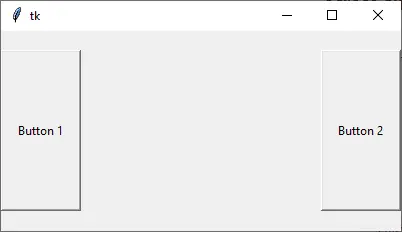
Como você pode ver, a altura e largura do botão não são as mesmas nos pixels, embora sua width e height estejam definidas para serem ambas 10.
Configurar width e height em Pixels de Tkinter Botão
Se precisarmos especificar a largura e/ou altura do Tkinter Button widget na unidade de pixels, poderíamos adicionar uma imagem virtual invisível 1x1 pixel ao Button. Em seguida, a width e a height serão medidas na unidade de pixel.
tk.Button(app, text="Button 1", image=pixelVirtual, width=100, height=100, compound="c")
Também precisamos definir a opção compound para ser c ou igualmente tk.CENTER se a imagem invisível e o texto devem ser centralizados no botão. Se o compound não estiver configurado, o text não aparecerá no botão.
import tkinter as tk
import tkinter.font as tkFont

app = tk.Tk()
app.geometry("300x100")
fontStyle = tkFont.Font(family="Lucida Grande", size=20)

labelExample = tk.Label(app, text="20", font=fontStyle)

pixelVirtual = tk.PhotoImage(width=1, height=1)

buttonExample1 = tk.Button(
    app, text="Increase", image=pixelVirtual, width=100, height=100, compound="c"
)
buttonExample2 = tk.Button(
    app, text="Decrease", image=pixelVirtual, width=100, height=100, compound="c"
)

buttonExample1.pack(side=tk.LEFT)
buttonExample2.pack(side=tk.RIGHT)
app.mainloop()
Alterar o tamanho do botão do Tkinter após a inicialização
Após a criação do widget Button, o método configure poderia definir as opções width e/ou height para alterar o tamanho do Botão.
buttonExample1.configure(height=100, width=100)
Ele define a height e a length do buttonExample1 para ser 100.
Exemplos completos de trabalho para alterar o tamanho do botão após a inicialização
import tkinter as tk
import tkinter.font as tkFont

app = tk.Tk()
app.geometry("600x500")


def decreaseSize():
    buttonExample1.configure(height=100, width=100)


def increaseSize():
    buttonExample2.configure(height=400, width=400)


pixelVirtual = tk.PhotoImage(width=1, height=1)

buttonExample1 = tk.Button(
    app,
    text="Decrease Size",
    image=pixelVirtual,
    width=200,
    height=200,
    compound="c",
    command=decreaseSize,
)
buttonExample2 = tk.Button(
    app,
    text="Increase Size",
    image=pixelVirtual,
    width=200,
    height=200,
    compound=tk.CENTER,
    command=increaseSize,
)

buttonExample1.pack(side=tk.LEFT)
buttonExample2.pack(side=tk.RIGHT)
app.mainloop()