HOWTO · React Native
React Native에서 요소 정렬
이 튜토리얼에서는 React Native에서 요소를 정렬하는 방법에 대해 설명합니다.
이 페이지의 내용
이 기사에서는 필요한 예제와 설명을 사용하여 React-Native 요소를 정렬하고 이해하기 쉽게 만드는 방법을 살펴봅니다.
React Native에서 요소 정렬
항목을 정렬하는 데 사용할 수 있는 정렬에는 가로 및 세로 두 가지가 있습니다. 수평정렬은 Top, Center, Button 3가지 속성이 있고, 수직정렬은 Left, Center, Right 3가지 속성이 있습니다.
flex를 사용하면 아래 구문을 사용하여 항목을 쉽게 정렬할 수 있습니다.
통사론:
container: {flex: 1
       justifyContent: 'center', // For aligning vertically
       alignItems: 'center', // For aligning horizontally
    }
flex를 사용하여 React-Native 요소 정렬
// Importing necessary packages
import {StatusBar} from 'expo-status-bar';
import {Image, StyleSheet, Text, View, ViewComponent, ViewPagerAndroidBase} from 'react-native';

// Our main function
export default function App() {
  let img = './assets/image1.jpg';  // Declaring a variable that hold the image
                                    // location
  return (
      <View style = {styles.container}><Text>This is a body aligned center<
          /Text>
      <View style={styles.container01}>
        <Text>I am Left</Text>
      <Image style = {styles.img} source =
       {
         require(img)
       } />
        <StatusBar style="auto" />
      </View>
    <View style={styles.container02}>
        <Text>I am Center</Text>
      <Image style = {styles.img} source =
       {
         require(img)
       } />
        <StatusBar style="auto" />
      </View>
    <View style={styles.container03}>
        <Text>I am Right</Text>
      <Image style = {styles.img} source = {
        require(img)
      } />
        <StatusBar style="auto" /></View>
    </View>);
}

const styles = StyleSheet.create({
  // Providing some styles to the UI
  container: {
    flex: 1,
    backgroundColor: '#fff',
    alignItems: 'center',
    justifyContent: 'center',
    margin: 50,
  },
  container01: {
    flex: 1,
    alignSelf: 'flex-start',
  },
  container02: {
    flex: 1,
    alignSelf: 'center',
  },
  container03: {
    flex: 1,
    alignSelf: 'flex-end',
  },
  img: {
    width: 100,
    height: 100,
  },
});
우리는 이미 예제에서 위에서 공유한 단계와 관련하여 필요한 모든 줄의 목적을 명령했습니다. 예제에서 container01, container02 및 container03은 container의 하위 요소입니다.
앱을 실행하면 화면에 아래와 같은 출력이 표시됩니다.
출력:
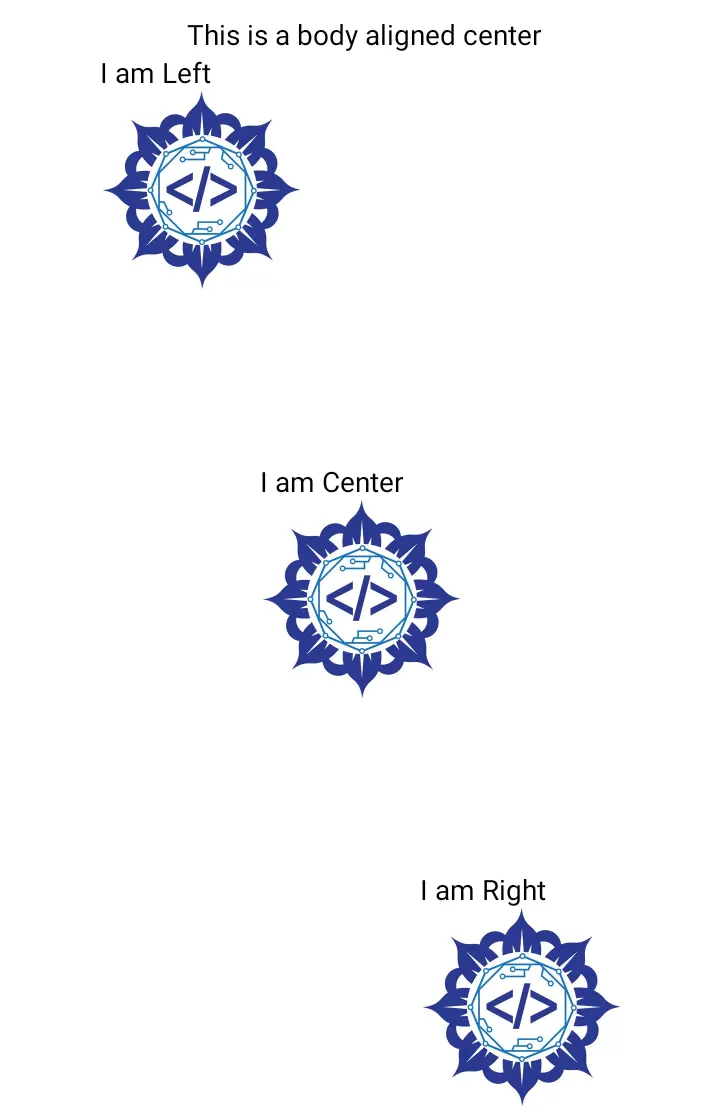
위에서 공유한 코드는 React-Native에서 생성되었으며 Expo-CLI를 사용하여 앱을 실행했습니다.