Cambia il colore del pulsante Tkinter
-
Imposta il colore del
pulsantedi Tkinter -
Cambia colore del
Buttondi Tkinter con il metodoconfigure -
Cambia il colore del
Buttondi Tkinter con gli attributibg/fg

Il widget Button Tkinter ha gli attributi bg e fg per impostare i colori di sfondo e primo piano. Potremmo assegnare i colori a bg e fg quando inizializziamo l’oggetto Button, e cambiamo il colore del Button di Tkinter con il metodo configure o assegniamo nuovi valori ai tasti bg e fg.
Imposta il colore del pulsante di Tkinter
import tkinter as tk


class Test:
    def __init__(self):
        self.root = tk.Tk()
        self.root.geometry("250x100")
        self.buttonA = tk.Button(self.root, text="Color", bg="blue", fg="red")

        self.buttonB = tk.Button(
            self.root, text="Click to change color", bg="gray", fg="purple"
        )
        self.buttonA.pack(side=tk.LEFT)
        self.buttonB.pack(side=tk.RIGHT)
        self.root.mainloop()


app = Test()
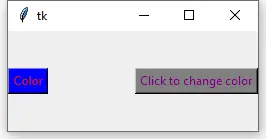
Puoi anche sostituire bg con background, fg con foreground per impostare lo sfondo del Button di Tkinter e il colore di primo piano.
import tkinter as tk


class Test:
    def __init__(self):
        self.root = tk.Tk()
        self.root.geometry("250x100")
        self.buttonA = tk.Button(
            self.root, text="Color", background="blue", foreground="red"
        )

        self.buttonB = tk.Button(
            self.root,
            text="Click to change color",
            background="gray",
            foreground="purple",
        )
        self.buttonA.pack(side=tk.LEFT)
        self.buttonB.pack(side=tk.RIGHT)
        self.root.mainloop()


app = Test()
Cambia colore del Button di Tkinter con il metodo configure
Dopo che il widget Button di Tkinter è stato creato, potremmo cambiarne il colore usando il metodo configure.
import tkinter as tk


class Test:
    def __init__(self):
        self.root = tk.Tk()
        self.root.geometry("250x100")
        self.buttonA = tk.Button(self.root, text="Color", bg="blue", fg="red")

        self.buttonB = tk.Button(
            self.root, text="Click to change color", command=self.changeColor
        )
        self.buttonA.pack(side=tk.LEFT)
        self.buttonB.pack(side=tk.RIGHT)
        self.root.mainloop()

    def changeColor(self):
        self.buttonA.configure(bg="yellow")


app = Test()

self.buttonA.configure(bg="yellow")
Configura lo background o ugualmente bg come yellow.
Cambia il colore del Button di Tkinter con gli attributi bg / fg

bg e fg sono chiavi del dizionario dell’oggetto widget Button di Tkinter, quindi, potremmo cambiare il colore di Tkinter Button assegnando nuovi valori a queste keys.
import tkinter as tk


class Test:
    def __init__(self):
        self.root = tk.Tk()
        self.root.geometry("250x100")
        self.buttonA = tk.Button(self.root, text="Color", bg="blue", fg="red")

        self.buttonB = tk.Button(
            self.root, text="Click to change color", command=self.changeColor
        )
        self.buttonA.pack(side=tk.LEFT)
        self.buttonB.pack(side=tk.RIGHT)
        self.root.mainloop()

    def changeColor(self):
        self.buttonA["bg"] = "gray"
        self.buttonA["fg"] = "cyan"


app = Test()

Founder of DelftStack.com. Jinku has worked in the robotics and automotive industries for over 8 years. He sharpened his coding skills when he needed to do the automatic testing, data collection from remote servers and report creation from the endurance test. He is from an electrical/electronics engineering background but has expanded his interest to embedded electronics, embedded programming and front-/back-end programming.
LinkedIn FacebookArticolo correlato - Tkinter Button
- Come passare gli argomenti al comando del pulsante Tkinter
- Come chiudere una finestra Tkinter con un pulsante
- Come cambiare lo stato del pulsante Tkinter
- Come creare una nuova finestra cliccando un pulsante in Tkinter
- Come legare più comandi al pulsante Tkinter
- Modifica la dimensione del pulsante Tkinter