HOWTO · Git
撤消 Git 中的更改
本教程介紹了用於撤消對本地和遠端倉庫的更改的各種命令。這些命令包括:git clean、git reset、git revert。
本教程介紹了撤消對本地和遠端倉庫所做更改的各種命令。這些命令包括:
git cleangit resetgit revert
使用 git log 命令檢查 Git 中的提交歷史
讓我們首先看看我們如何檢查我們的提交歷史。我們使用 git log 命令檢查這一點。
pc@JOHN MINGW64 ~/Git (main)
$ git log
commit 195e5c362975354d62ebc469da2e3cd276c7da03 (HEAD -> main)
Author: John <wachirajohnie11@gmail.com>
Date:   Mon Feb 21 12:11:12 2022 +0300
commit 7b19db4b35c1ca15e5ecb8df1f805d44aad62e5f
Author: John <wachirajohnie11@gmail.com>
Date:   Mon Feb 21 10:09:31 2022 +0300
   first commit
該命令僅顯示你的工作分支的歷史記錄。要檢查所有分支,請使用以下命令。
git log --branches=*
使用 git checkout 命令檢視特定的提交,如下所示。
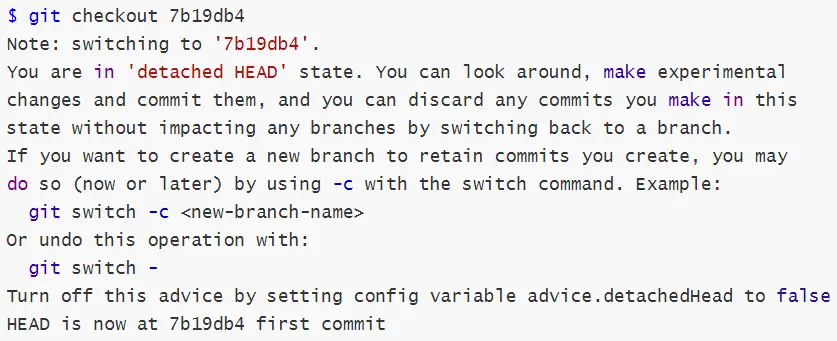
現在你可以訪問檔案而不會篡改專案的當前狀態。使用 git checkout main 命令返回到當前專案工作區。
使用 git clean 命令撤消 Git 中的更改
我們使用 git clean 命令撤消對未跟蹤檔案的更改。你無法撤消 git clean 命令。
-
git clean -n選項充當試用命令。它只顯示未跟蹤的檔案,但不會刪除它們。例子:
pc@JOHN MINGW64 ~/Git (main) $ git clean -n Would remove Hello world.txt Would remove Test1.txt -
git clean --force命令刪除工作目錄中所有未跟蹤的檔案和資料夾。你可以使用.gitignore命令丟擲異常。例子:
pc@JOHN MINGW64 ~/Git (main)
$ git clean --force
Removing Hello world.txt
Removing Test1.txt
讓我們檢查檔案是否在我們的目錄中。
pc@JOHN MINGW64 ~/Git (main)
$ git status
On branch main
nothing to commit, working tree clean
輸出顯示一個乾淨的分支。該命令成功刪除了檔案。
使用 git revert 命令撤消 Git 中的更改
git revert 命令作用於提交所做的更改並覆蓋它。我們用它來回到某個點並進行更改。
讓我們使用命令來更改我們的 first commit。
git revert first commit
#[first commit [7b19db4] Revert 'first commit'
#1 file changed, 1 deletion(-)
你必須通過提交參考。
使用 git reset 命令撤消 Git 中的更改
我們將介紹的最後一個命令是 git reset。該命令在 HEAD 上執行。
-
git reset --hard選項更改指定的提交。但是,暫存索引和工作目錄中的任何更改都與更改相匹配。所有暫存的提交都會在此過程中丟失。例子:
$ git reset --hard
HEAD is now at 78129a6 Revert "$first commit"
該命令對
HEAD執行硬重置。 -
git reset --mixed命令將臨時索引中的更改儲存到你的工作目錄。例子:
$ git reset --mixed
Unstaged changes after reset:
M       .bash_history
M       text.txt.txt
M       text.txt.txt.bak
該命令已將未完成的更改從輸出中儲存到我們的工作目錄中。讓我們檢查一下我們分支的狀態。
$ git status On branch main Changes not staged for commit: (use "git add <file>..." to update what will be committed) (use "git restore <file>..." to discard changes in working directory) modified: .bash_history modified: text.txt.txt modified: text.txt.txt.bak Untracked files: (use "git add <file>..." to include in what will be committed) .bash_history.bak no changes added to commit (use "git add" and/or "git commit -a") -
git reset --soft命令僅更改提交歷史記錄。預設指標始終是HEAD。例子:
pc@JOHN MINGW64 ~/Git (main)
$ git reset --soft
pc@JOHN MINGW64 ~/Git (main)
$ git status
On branch main
Changes not staged for commit:
  (use "git add <file>..." to update what will be committed)
  (use "git restore <file>..." to discard changes in working directory)
		modified:   .bash_history
		modified:   text.txt.txt
		modified:   text.txt.txt.bak
Untracked files:
  (use "git add <file>..." to include in what will be committed)
		.bash_history.bak
no changes added to commit (use "git add" and/or "git commit -a")
從上面的輸出中,我們的工作目錄和暫存索引保持不變。使用提交的雜湊值來重置特定的提交。