HOWTO · Pygame
surface.blit() Function in Pygame
Learn how Surface.blit() copies pixels between Pygame surfaces, positions the result, and selects a source area.
On this page
Surface.blit() copies pixels from a source Surface onto a destination Surface. In a Pygame display, the screen is the destination surface; you can also draw onto an off-screen surface and then place that result on the screen. The short operation examples below explain the arguments, while the final section puts them in a complete window and event loop.
These examples focus on copying and positioning pixels. They do not demonstrate blending. For setup instructions, see the bare-bones Pygame window example; the examples here focus on drawing between surfaces rather than creating a window.
How Surface.blit() draws one surface onto another
Call blit() on the surface that will receive the pixels. Its first argument is the source surface, and its second argument gives the destination position: the upper-left corner where the source is drawn. For example, destination.blit(source, (20, 30)) places the source at x-coordinate 20 and y-coordinate 30 on the destination. A two-item tuple is a clear way to express that position.
The method also accepts an optional source area and a special-flags value. The source area is a rectangle measured from the source surface’s upper-left corner; it selects which portion to copy. If you omit it, the full source surface is used. Special flags select a Pygame blit operation, such as a blend operation. They are separate from the destination position and source-area arguments, and the example here leaves them at their default.
The call shape is destination.blit(source, destination_position, source_area=None, special_flags=0). The blit() method returns a rectangle describing the area affected on the destination, which can be useful when updating only part of a display. A destination position outside the destination surface can result in only the overlapping portion being drawn.
Use Surface.blit() with a source area
Create surfaces with pygame.Surface((width, height)), then fill them with an RGB color tuple such as (200, 100, 100). To copy a selected source area, pass a rectangle in the form (x, y, width, height) as the third argument. For instance, (0, 0, 10, 5) selects a 10-by-5 rectangle starting at the source’s upper-left corner. The copied pixels begin at the destination position you pass as the second argument.
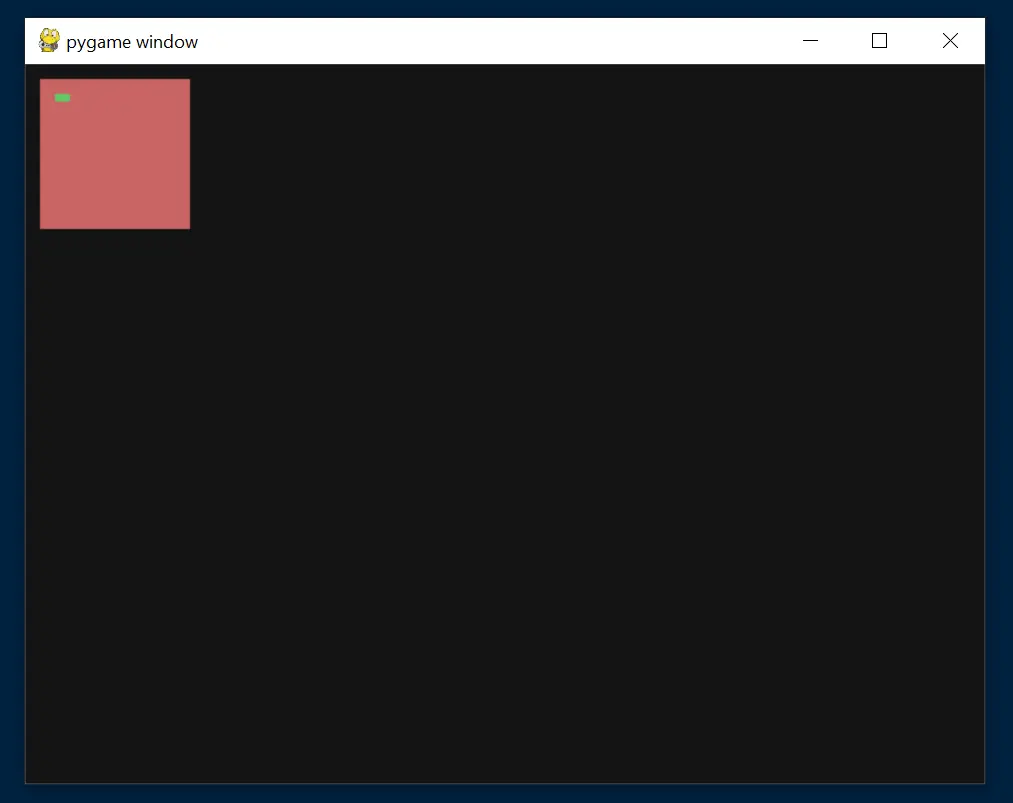
After drawing onto an off-screen surface, draw that surface onto the display inside the event loop. Clear or redraw the display each frame before calling pygame.display.flip(); otherwise, previous frame contents can remain visible. The illustration shows the idea of copying a source region onto another surface.
Run a complete Pygame example
The following program creates a window, fills two surfaces, copies a selected region from one onto the other, and draws the result for 60 frames before closing. It initializes only the display subsystem because this example does not use audio. Install Pygame in the Python environment you use to run it. For a window that stays open until you close it, replace range(60) with while running. The supplied run printed the Pygame startup messages and the copy confirmation shown below.
import sys
import warnings

warnings.filterwarnings(
    "ignore",
    message="Your system is avx2 capable but pygame was not built with support for it.*",
    category=RuntimeWarning,
)

import pygame

pygame.display.init()
screen = pygame.display.set_mode((640, 480), pygame.RESIZABLE)
pygame.display.set_caption("Surface.blit() example")
clock = pygame.time.Clock()

destination = pygame.Surface((100, 100))
destination.fill((200, 100, 100))

source = pygame.Surface((30, 30))
source.fill((100, 200, 100))

# Copy a 10-by-5 region from source to destination at (10, 10).
destination.blit(source, (10, 10), (0, 0, 10, 5))
print("Copied a 10-by-5 source area to (10, 10).")

running = True
for _ in range(60):
    for event in pygame.event.get():
        if event.type == pygame.QUIT:
            running = False

    if not running:
        break

    screen.fill((20, 20, 20))
    screen.blit(destination, (10, 10))
    pygame.display.flip()
    clock.tick(60)

pygame.quit()
sys.exit()
pygame 2.6.1 (SDL 2.26.5, Python 3.14.7)
Hello from the pygame community. https://www.pygame.org/contribute.html
Copied a 10-by-5 source area to (10, 10).